Animation Editor
Keyframe a control and Kredi Lab will animate it over time — a slow push into warmth, a graded reveal, a glow that blooms on a beat. The Animation Editor is where you see and shape every animated control on the effect: their value curves, their timing, and how each keyframe eases from one value to the next.
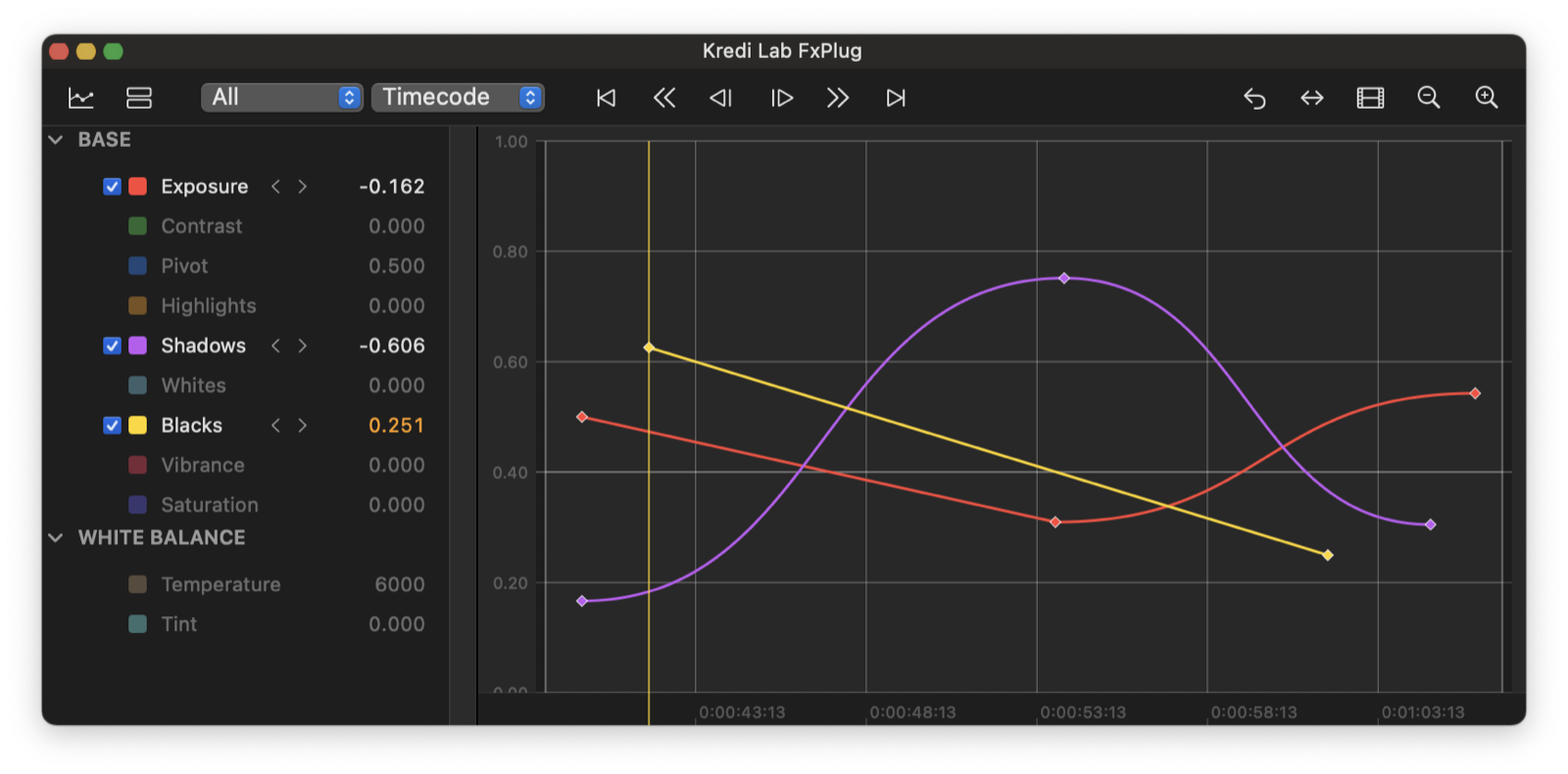
Open it from the Animation button in the header. The window has a channel list down the left (one row per animated control) and, on the right, your choice of two views: a Graph of value curves over time, or a Dopesheet of keyframes laid out along a timeline.
note
Only animatable controls appear here. Most grading controls can be keyframed; a few structural ones cannot, and those simply won’t show up in the list.
Keyframing a control
Every animatable slider in the inspector has a small diamond button at the right end of its row. Hover the row to reveal it.
- Click the diamond to add or toggle a keyframe at the current playhead position. Once a control has two or more keyframes, it animates between them.
- Right-click the diamond for the full menu: Add Keyframe, Delete Keyframe, Delete All Keyframes, Previous Keyframe / Next Keyframe (jump the playhead to neighbouring keys), Mute Animation (temporarily ignore the keyframes and hold a static value) / Enable Animation, and Show in Keyframe Editor (opens this window focused on that control).
Inside the editor you can also create keyframes in place: double-click a channel’s lane in the Dopesheet, or double-click the focused curve in the Graph, and a keyframe is added right there. The first keyframe always takes the control’s current value, so starting an animation never jumps the image.
The channel list
- The number field next to each channel accepts typed values — click it and enter a value directly; a keyframe is written at the playhead.
- Select several channels with ⌘-click / ⇧-click to see their curves together in the Graph. A single selection scales the graph to that control’s real value range; no selection shows every animated curve at once. Selected lanes are highlighted in the Dopesheet.
- Right-click a channel for Remove Animation — strips all its keyframes; the control keeps the value it had at the playhead.
- Chevron arrows on an animated row step the playhead between that control’s keyframes without leaving the window.
Toolbar, ruler & transport
- Fit frames your keyframes; Fit Clip zooms to the whole clip.
- The time ruler shows your timeline’s real timecode, or plain frame numbers — pick in the toolbar. Tick spacing adapts so labels never overlap.
- Scrub from the editor: drag the playhead line, or click/drag anywhere in the ruler — in both views. The viewer follows live.
- Transport buttons: go to clip start / end, step one frame back / forward, and jump to the previous / next keyframe.
- The area outside the clip is shaded in both views, so a keyframe parked off the clip is clearly off the clip.
Frame snapping
Everything is frame-accurate by default — dragging keys, scrubbing, and newly created keyframes all snap to frame boundaries. Hold ⌘ while dragging for free, unsnapped positioning. Retiming in the Dopesheet snaps the delta, so keys that sit on frames stay on frames.
Graph view
The Graph plots each animated control as a coloured curve — value up the vertical axis, time across the horizontal. Use it when the shape of a move matters: how fast it ramps, where it overshoots, where it settles.
- Add a keyframe by double-clicking the curve, or via the diamond / row menu at the playhead.
- Move a keyframe by dragging its point. Drag freely to change both its time and value at once; hold Shift while dragging to lock the move to whichever axis you started along (time-only or value-only).
- Delete a selected keyframe with the Delete or Backspace key.
- Drag in empty space to rubber-band select keyframes; hold ⌥ to pan the view instead (two-finger horizontal scroll pans too).
Dopesheet view
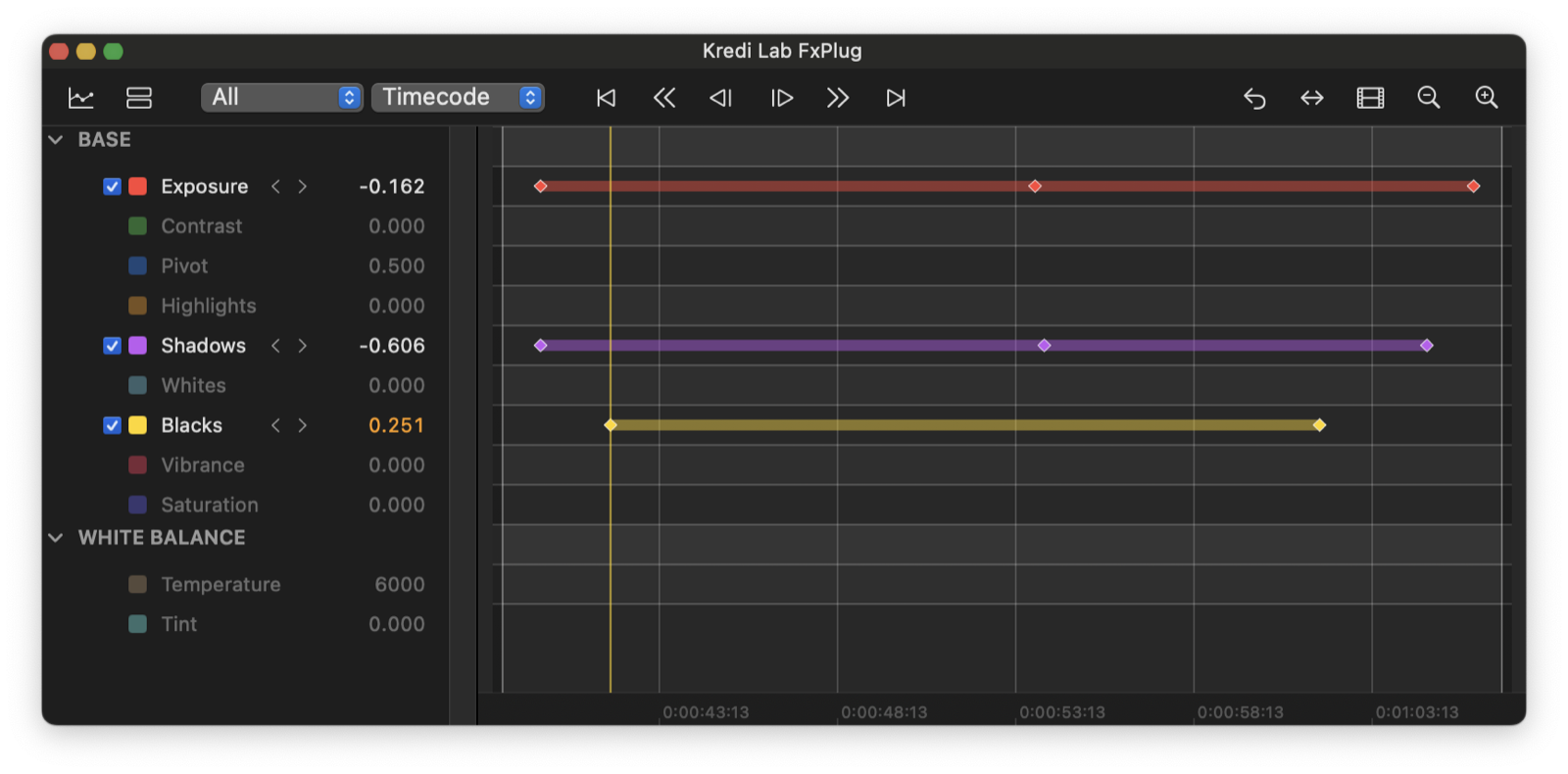
The Dopesheet shows the same channels as horizontal lanes, with each keyframe as a small diamond along the timeline. The lanes line up with the rows in the channel list. Use it when timing matters more than value — lining keyframes up to a cut, spreading them evenly, or nudging a whole move earlier or later.
- Drag a diamond left or right to retime that keyframe (frame-snapped; ⌘ for free).
- Double-click a lane to add a keyframe on that channel at that time.
- Delete a selected keyframe with Delete or Backspace.
- Plain drag rubber-band selects; ⌥-drag pans, exactly as in the Graph.
Switch between the two with the Graph and Dopesheet buttons in the editor’s toolbar. The Filter popup lets you show All controls or only Animated ones, and the Reset button snaps the visible time range back to the playhead.
Ease (interpolation)
Each keyframe controls how the value travels into it. Right-click any keyframe — in either the Graph or the Dopesheet — to pick its ease:
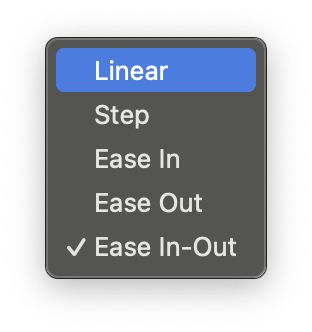
- Linear — constant speed, a straight ramp.
- Step — holds the previous value, then jumps at the keyframe (no in-between blend). Good for hard switches.
- Ease In — starts slow, accelerates.
- Ease Out — starts fast, decelerates into the keyframe.
- Ease In-Out — eases at both ends for a smooth, natural move.
A checkmark marks the keyframe’s current ease. Mixing eases along a curve is how you give an automated move a hand-animated feel.
tip
Build the timing first in the Dopesheet, then switch to the Graph and set eases to taste. Start most moves with Ease In-Out and only reach for Linear or Step when you specifically want a mechanical ramp or a hard cut.
Resetting
Every inspector row keeps its usual hover-reveal reset — hover the control’s label to reveal the reset affordance and click it to return that control to its default. To clear animation specifically, use Delete All Keyframes from the row’s diamond menu (or Remove Animation on the channel in the editor); the control then holds a single static value again.
Quick Grade and keyframes
Adjustments made through Quick Grade — the pie menu, the command palette, on-image drags — write parameter values through exactly the same rules as inspector sliders: on an animated control they land as keyframed values at the playhead, and on a static control they set the static value.