Base
The Base stage is the foundation of every grade in Kredi Lab. It is the first creative adjustment applied to your shot, working in a wide, scene-referred space so that exposure and contrast moves behave naturally — much like adjusting light on set rather than pushing pixels after the fact. Start here to set overall brightness, contrast and colour intensity before reaching for more targeted tools.
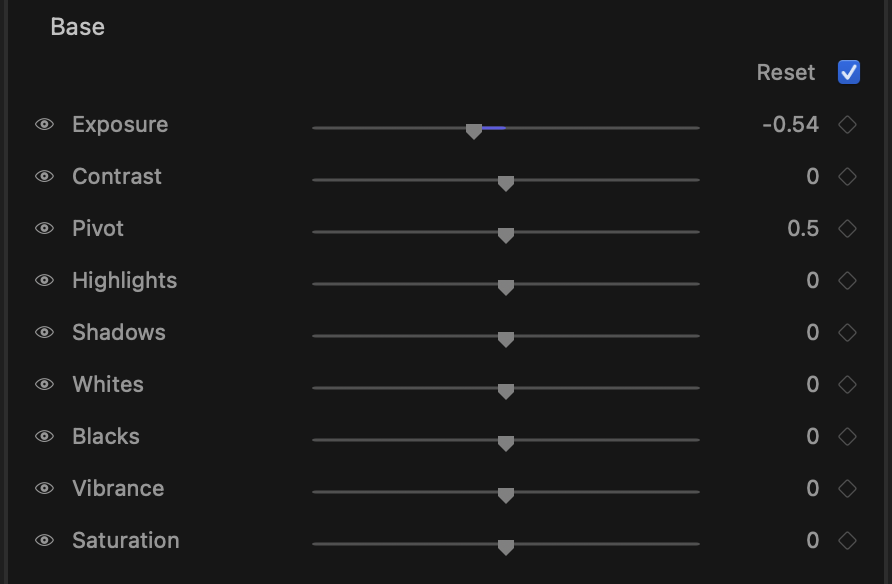
What it is for
Think of Base as your primary correction: get the image sitting at the right exposure, give it the contrast and tonal balance you want, and dial in how saturated the colours read. Everything downstream builds on the foundation you set here, so a clean Base pass makes the rest of the grade easier.
Controls
- Exposure (−3.00 to 3.00, default 0) — Overall brightness of the shot, measured in stops. Positive values open the image up, negative values bring it down. This is usually the first move you make.
- Contrast (−1.00 to 1.00, default 0) — Expands or compresses the tonal range around the pivot point. Increase for punchier images, decrease for a flatter, softer look.
- Pivot (0.10 to 0.90, default 0.50) — The tonal anchor that Contrast rotates around. Lower the pivot to protect highlights while adding contrast in the shadows; raise it to do the opposite.
- Highlights (−1.00 to 1.00, default 0) — Recovers or lifts the brightest regions. Pull down to tame blown highlights, push up for more sparkle.
- Shadows (−1.00 to 1.00, default 0) — Lifts or deepens the darker regions without crushing the very bottom of the image.
- Whites (−1.00 to 1.00, default 0) — Sets the upper limit of the tonal range — how bright the brightest tones can go.
- Blacks (−1.00 to 1.00, default 0) — Sets the bottom of the tonal range. Lower for richer, denser blacks; raise to open up the darkest detail.
- Vibrance (−1.00 to 1.00, default 0) — A gentle saturation control that focuses on the more muted colours while protecting tones that are already vivid. A natural-looking way to add colour.
- Saturation (−1.00 to 1.00, default 0) — Uniform colour intensity across the whole image. Drop toward −1 for a desaturated look, raise for bolder colour.
tip
Set Exposure and Pivot first, then shape contrast — adjusting the pivot before the contrast move gives you precise control over which tones get stretched.
tip
Reach for Vibrance before Saturation when you want more colour without making skin tones look artificial; Vibrance leaves already-saturated areas largely untouched.
Working with the stage
Every control row has a per-row reset: hover over the row and a reset affordance appears, returning just that one slider to its default while leaving the rest of your work intact.
The whole stage can be keyframed. Animate Exposure, contrast or saturation over time to follow changing light — a sunset, a passing cloud, a camera move into shade — without ever leaving the Base stage.