Camera Matrix
The Camera Matrix stage is a primary-correction tool that lets you tune the behaviour of each colour channel — Red, Green and Blue — independently. Instead of pushing the whole image one way, you decide where each channel lands on the colour chart. It is ideal for compensating a camera’s native colour response, neutralising a colour cast at the source, or giving a project a consistent baseline before you reach for creative grading.
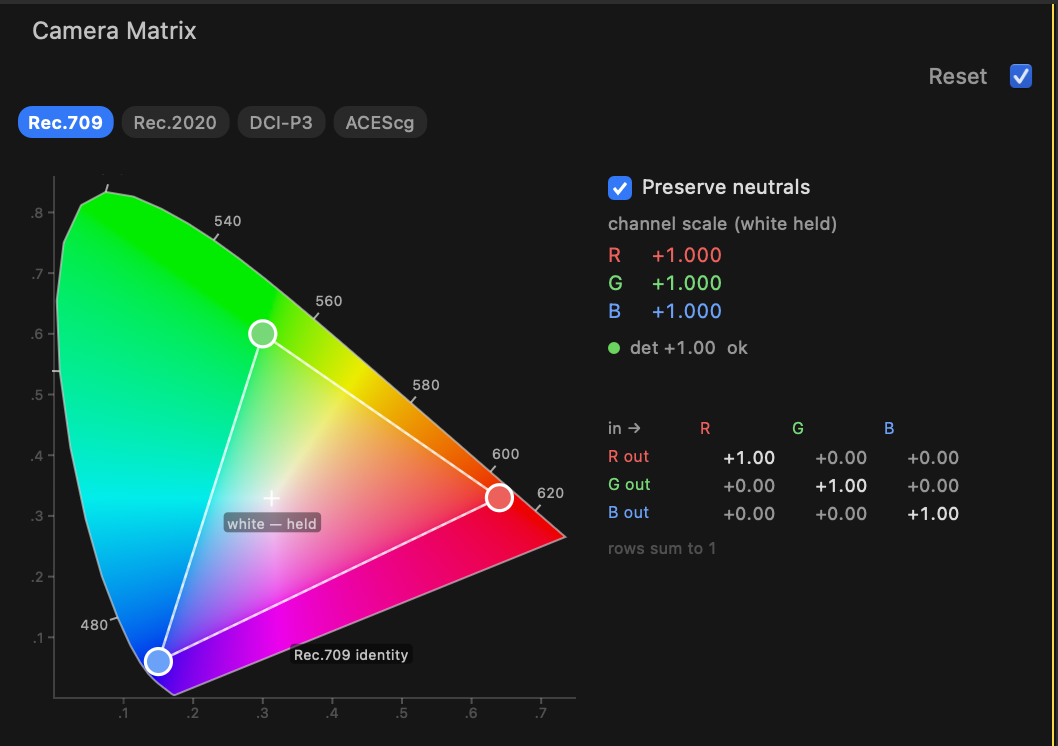
What it is for
Every camera renders red, green and blue a little differently. The Camera Matrix lets you place each channel exactly where you want it on a standard chromaticity chart, then read off the resulting values. Because it works on the underlying primaries, it is a powerful early step: small moves here ripple cleanly through everything you do downstream.
important
Changed in 1.0.17. The six Hue and Saturation sliders have been replaced by the chart described below. Grades and presets created before 1.0.17 lose their Camera Matrix contribution — the rest of the grade is unaffected. If you have older work that relied on this stage, re-create the correction with the new control and save the preset again.
The chart
The horseshoe is the range of colour the human eye can see. The triangle inside it is your working gamut, and its three corners are the pucks — one per input channel.
A puck shows where that input channel ends up. With everything at default the three pucks sit exactly on the corners of the selected gamut, which means red stays red, green stays green and blue stays blue. Drag the red puck toward orange and everything the camera recorded as red is rendered as orange.
- Drag a puck to place that channel.
- The dashed triangle is the unmodified gamut, so you can always see how far you have moved from neutral.
- The white marker shows where a neutral grey ends up. It reads held when whites are protected and drifted when they are not.
Choosing the gamut
The chips along the top — Rec.709, Rec.2020, DCI-P3, ACEScg — choose which gamut the chart is drawn against, and therefore where “no change” sits. Rec.709 is the default and is the most useful reference for most work, because its primaries sit inside the visible range, so it is obvious when you have pushed a channel somewhere real cameras and displays cannot reproduce.
note
The gamut chips change the reference the chart is drawn against. They do not convert your footage — colour management is handled by the project’s input and output transforms.
Preserve neutrals
This is the most important switch in the stage.
Switched on (the default) — whites and greys are protected. However far you drag a puck, a neutral grey stays neutral, so you can restyle the colour of the image without introducing a cast. The other two pucks stay exactly where you put them; the stage compensates by adjusting how much each channel contributes.
That compensation is shown as channel scale: how much light each channel contributes compared with its untouched state. +1.000 means untouched. A value that drops below 0.5 turns amber, warning you that the channel is losing a significant part of its output — a common cause of an image that shifts colour unexpectedly after a large move.
Switched off — the three gains become editable; drag left and right across a value to scrub it. You can also drag the white marker itself to place the neutral point wherever you like. Greys are no longer protected, which the readout states plainly: rows free — greys may tint.
tip
Start with Preserve neutrals on. It gives you the full range of colour rearrangement while keeping the picture printable. Turn it off only when you deliberately want a tint in the neutrals.
Reading the numbers
- The 3×3 grid is the exact recipe. Each column is an input channel, each row an output channel, so
R out / B inis how much of the original blue ends up in the final red. - det is a health indicator for the whole matrix. Around
+1.00is normal. As it approaches zero the channels are collapsing toward each other and the image loses colour separation; a negative value means the matrix has inverted. - primary outside the locus appears in amber when you have dragged a puck beyond the range of visible colour. The stage still renders, but that channel is asking for a colour no real light can produce, so expect it to behave unpredictably on saturated content.
Working with the stage
- Reset — the control in the stage header returns the whole matrix to its default, putting every puck back on its gamut corner.
- Section bypass — the dot in the stage header switches the whole Camera Matrix in and out, letting you compare your primary correction against the untouched source.
- Command palette — the nine values are searchable by name (
Red from Blue,Green from Green, and so on) if you prefer typing to dragging.
note
Camera Matrix is a static correction stage: it establishes a fixed per-channel response and its controls do not animate over time. Set it once to characterise your footage, then let the animatable stages handle anything that needs to change shot-to-shot.