Clarity
Clarity shapes the local contrast of your image — the punch and definition that lives between flat global contrast and fine sharpening. It works on midtone separation and texture, letting you add presence to a face or a landscape, or soften and smooth without losing the overall exposure. Shadows and highlights are controlled independently, so you can dig detail out of dark areas while keeping bright areas clean (or vice versa).
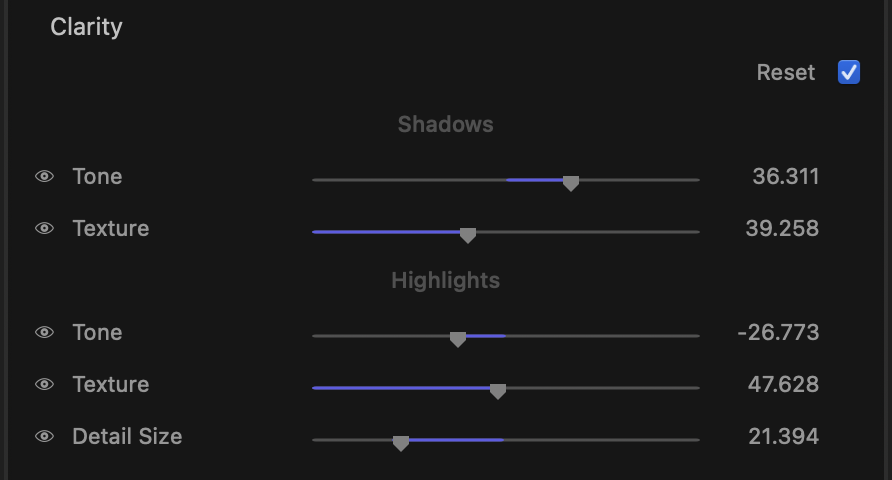
note
Clarity is region-aware: each adjustment is split into a Shadows group and a Highlights group so you can treat the dark and bright halves of the picture separately.
What it is for
- Add midtone “bite” and three-dimensionality to an otherwise flat shot.
- Bring out skin and surface texture, or smooth it back for a softer look.
- Recover definition in shadow detail without lifting overall exposure.
- Tame overly crunchy highlights, or sharpen highlight texture for sparkle.
Controls
The stage is organised into two groups — Shadows and Highlights — each with the same two sliders, followed by a shared Detail Size control.
Shadows
- Tone (−100 to +100, default 0) — local contrast for the darker regions. Push positive to deepen and define shadow areas; pull negative to lift and soften them.
- Texture (0 to 100, default 0) — fine surface detail in the shadows. Raise it to emphasise grain, pores and small features in dark areas.
Highlights
- Tone (−100 to +100, default 0) — local contrast for the brighter regions. Positive adds punch and separation to highlights; negative softens and flattens them.
- Texture (0 to 100, default 0) — fine surface detail in the highlights. Raise it to crisp up bright textures.
Detail Size
- Detail Size (1 to 100, default 50) — sets the scale that Clarity works on. Lower values target fine, small-scale texture; higher values act on broader, larger shapes. Adjust this to match the feature size you want to emphasise — pores and fabric weave sit low, faces and landscape forms sit higher.
Resetting
Each group has its own reset. Hover over the Shadows or Highlights header and a reset control appears — clicking it returns that group’s Tone and Texture sliders to zero, leaving the other group and Detail Size untouched. The reset stays hidden until the group has been moved away from its defaults.
tip
Start with Detail Size before touching Tone or Texture — it decides what Clarity acts on. Set the scale to match your subject, then dial in Tone for contrast and Texture for the fine stuff.
tip
A little goes a long way. Small positive Tone on the shadows often reads as “sharper and more present” without the over-processed halo look of heavy global sharpening.
A static stage
Clarity settings are fixed for the clip — they apply uniformly over time rather than animating. Set the definition once for the shot; only the Base and White Balance stages animate.