Color Density
Color Density gives your image the rich, saturated character of a film print. It works like a photochemical printer: you set the colour of the print “light”, balance warm against cool, and dial in how deep and saturated the dye layers sit — without the flatness you sometimes get from a straight saturation push.
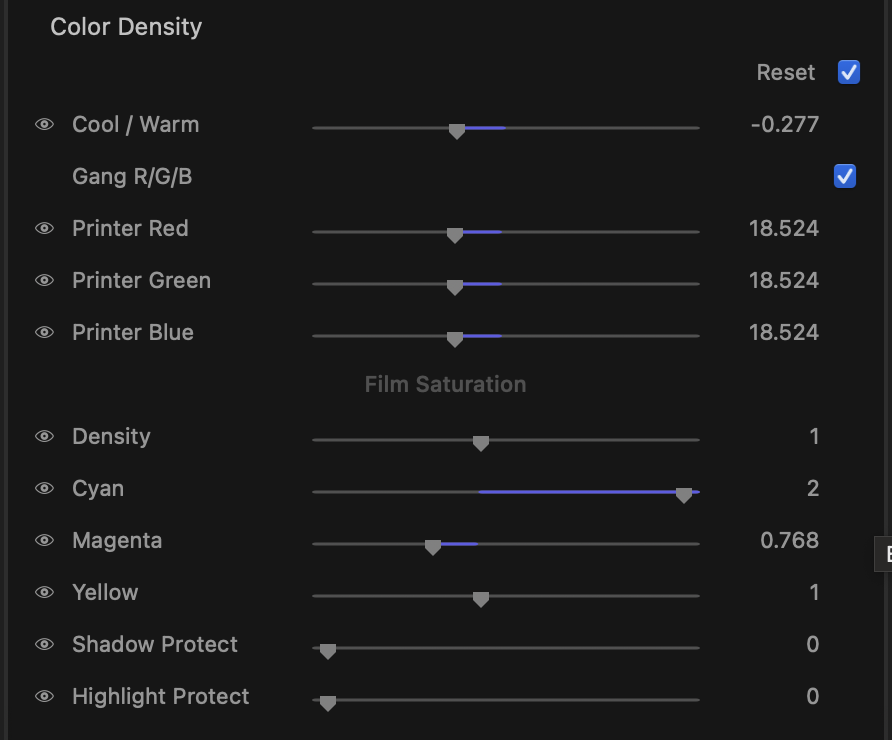
Use it when a grade feels thin or video-ish and you want fuller, denser colour with believable falloff in the shadows and highlights.
Printer light
These controls tint the whole image the way the exposure light in a film printer would, giving you a clean, photographic colour balance.
- Cool / Warm — a single slider that swings the overall balance from cool (blue, negative) to warm (amber, positive). The fastest way to set a mood. Default is centred (0).
- Gang R/G/B — when ticked (the default), the three Printer sliders move together so you can raise or lower overall density without shifting colour. Untick it to trim each channel independently.
- Printer Red / Printer Green / Printer Blue — the strength of each colour in the print light. Higher values add that colour; lower values let its complementary through. The neutral starting point for each is 25.
tip
Leave Gang R/G/B on and nudge the Printer sliders to push or pull overall density, then untick it for fine colour trims. Hover the Gang R/G/B label and click the reset arrow to return all three Printer sliders to neutral at once.
Film Saturation
This group controls how deep and saturated the colour sits, with separate handles for the dye layers plus protection for the extremes of the image.
- Density — the master amount of colour depth. Lower values open the image up and look lighter; higher values pack the colour in for a denser, more saturated print. Neutral is 1.0.
- Cyan / Magenta / Yellow — fine-tune the depth of each dye layer on its own, so you can enrich or relax one colour family without touching the others. Each is neutral at 1.0.
- Shadow Protect — holds the deepest shadows back from the density push so blacks stay clean instead of going muddy. Off by default.
- Highlight Protect — keeps bright highlights from over-saturating, preserving clean whites and skies. Off by default.
note
Density settings are static for the clip. Each row has a per-row reset: hover the control to reveal its reset arrow and click to return that single slider to its default.
A quick workflow
- Set the overall mood with Cool / Warm.
- With Gang R/G/B on, adjust the Printer sliders for overall density and balance.
- Raise Density until the colour feels full, then ease in Shadow Protect and Highlight Protect so the extremes stay clean.
- Trim individual Cyan / Magenta / Yellow layers only if a specific colour needs help.
The whole stage can be toggled on and off from its section header, so you can A/B the effect at any time.