Color Wheels
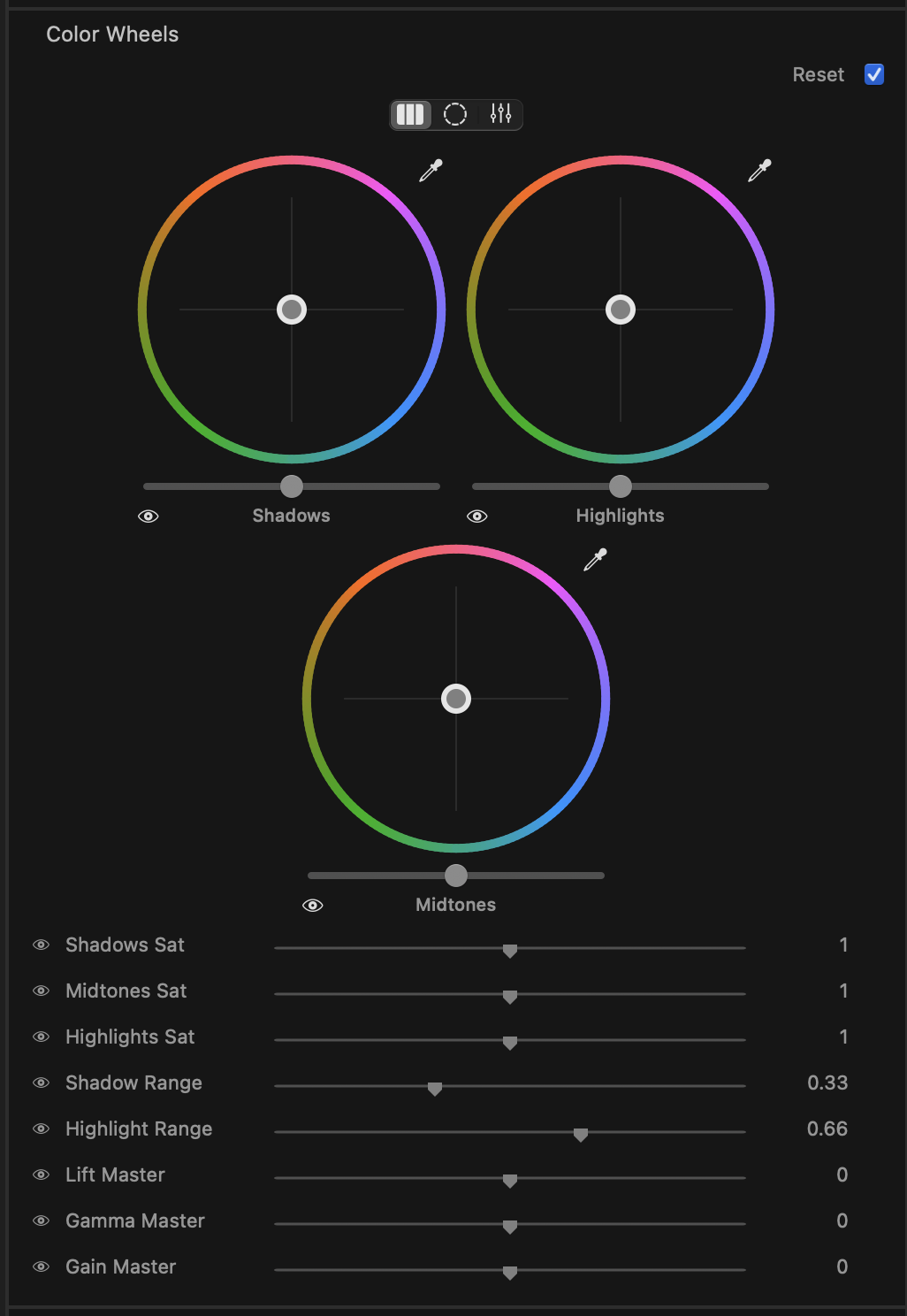
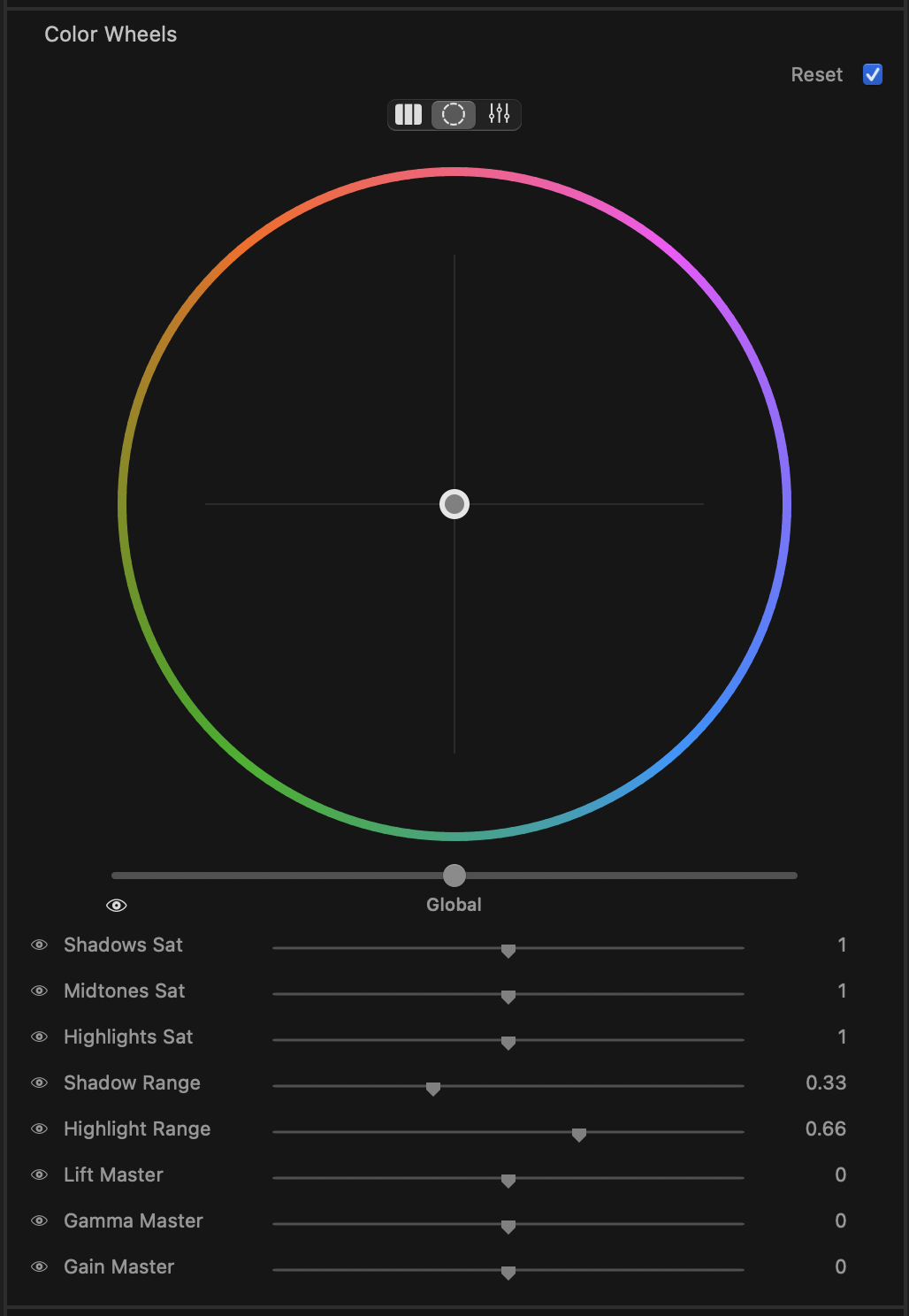
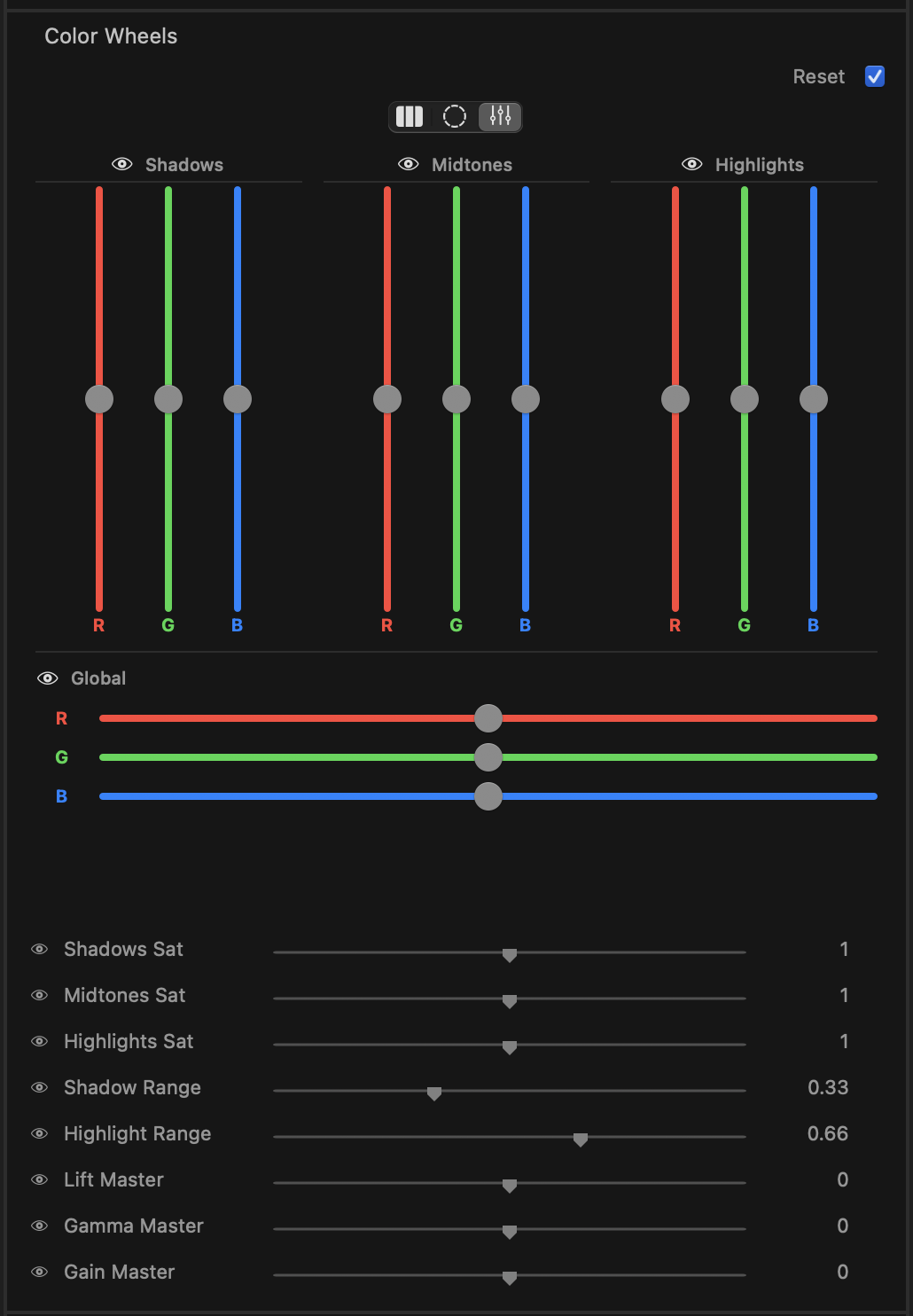
Color Wheels is the heart of primary colour balancing. Three tonal wheels — Shadows, Midtones and Highlights — let you push colour into different parts of the picture independently, while a fourth Global wheel shifts the whole frame at once. Saturation and range sliders fine-tune how strongly each tonal band reacts and where the bands sit.
How the wheels work
Each wheel is a colour-balance puck. Drag the puck away from the centre to tint that part of the image toward the chosen hue; the further you drag, the stronger the push. Drop it back in the centre for neutral.
- Shadows — balances the darkest tones. Use it to cool or warm the blacks and set the mood of the picture’s base.
- Midtones — balances the mid greys where most skin tones and subjects live. The most-used wheel for overall colour cast.
- Highlights — balances the brightest tones. Tint speculars and skies without disturbing the shadows.
- Global — shifts every tone together, like a colour wash across the entire frame.
Under each wheel sits a master slider. This raises or lowers the overall level of that tonal band — darker or brighter — without changing the colour balance set by the puck.
tip
Work top-to-bottom: set exposure with the master sliders first, then balance colour with the pucks. It keeps the two adjustments from fighting each other.
Eyedropper (balance picker)
Every wheel has its own eyedropper, labelled Balance Shadows, Balance Midtones and Balance Highlights. Click the eyedropper, then click a spot in the image that should be neutral grey or white. The wheel automatically pushes its puck to cancel the colour cast at that point — an instant white-balance for that tonal band.
tip
Pick a spot that you know should be neutral — a grey card, a white shirt, a concrete wall. Use the Highlights picker on a bright neutral and the Shadows picker on a dark neutral for a fast, clean balance.
Saturation and range
Below the wheels are sliders that shape how the bands behave:
- Shadows Sat (0–2, default 1) — saturation of the shadow tones. Below 1 desaturates the blacks; above 1 enriches them.
- Midtones Sat (0–2, default 1) — saturation of the mid tones.
- Highlights Sat (0–2, default 1) — saturation of the bright tones. Pulling this down is a classic way to keep highlights from going garish.
- Shadows Sat Range (0–1, default 0.33) — sets where the shadow band ends and the midtone band begins, for the three saturation sliders above and for each wheel’s master brightness slider.
- Highlights Sat Range (0–1, default 0.66) — sets where the midtone band ends and the highlight band begins, for the same controls.
note
The two range sliders scope the saturation sliders and the wheels’ master brightness sliders. They do not change where the colour pucks act. The pucks are lift / gamma / gain in the ASC CDL sense — a lift puck reaches into the shadows, a gain puck into the highlights, because of how that maths works, not because of a band setting. So moving a puck and then adjusting a range slider will not change the puck’s reach; adjust the puck itself.
note
The bands overlap smoothly, so adjustments blend rather than producing hard edges between shadows, mids and highlights.
Bypass
Each wheel has an eye toggle to bypass that wheel on its own, so you can A/B a single band without losing the others. The whole stage also has its own bypass in the section header.
Color Wheels are a static stage — the balance you set holds across the whole clip rather than animating over time.
Resetting
Hover over any wheel’s label (Shadows, Midtones, Highlights, Global) and a reset control appears — click it to return that wheel and its master to neutral. The saturation and range sliders each reveal their own reset on hover as well. This lets you clear one part of the grade without disturbing the rest.