Creative Looks
Creative Looks applies a stylised “look” on top of your grade — the kind of preset filmic or stylized colour treatment you reach for once exposure, balance and contrast are already where you want them. Load one of the bundled looks or your own LUT, then dial in exactly how much of it lands, and how it affects brightness versus colour.
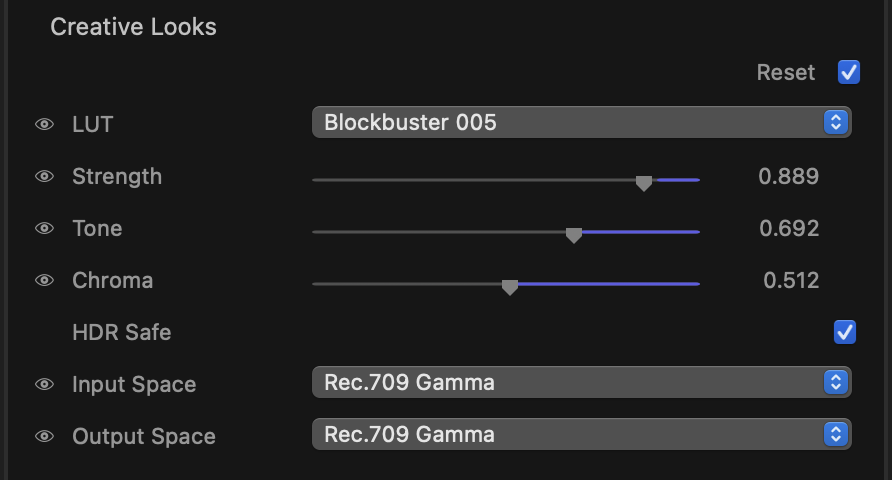
Place Creative Looks late in your chain — after primary correction — so the look interprets a clean, balanced image.
What it does
The stage runs your image through a chosen look (a colour transform), then lets you blend that result back against the original and control how much of the effect touches tone (brightness) versus chroma (colour). It also converts in and out of the right colour space so the look reads correctly, and can keep bright highlights safe when working in HDR.
Controls
LUT
Chooses which look to apply:
- None — no look is applied (the stage passes the image through untouched).
- Looks 1–4 — the bundled creative looks included with the plug-in.
- Custom LUT… — opens a file picker so you can load your own
.cubeLUT from disk. Once selected, your file is remembered and used in place of the bundled looks.
Strength
Blends the look against the untreated image. At 1.0 (the default) you get the full look; lower values ease it back toward the original — the simplest way to make any look more subtle.
Tone
Controls how much the look affects brightness and contrast. Pull it down to keep your existing tonal balance while still picking up the look’s colour character.
Chroma
Controls how much the look affects colour and saturation. Pull it down for a more restrained, less saturated version of the look while keeping its tonal shaping.
tip
Tone and Chroma let you split a look apart. Want a LUT’s colour palette but not its crushed contrast? Drop Tone and keep Chroma up. Want its contrast curve but tamer colours? Do the opposite.
HDR Safe
On by default. Keeps very bright highlights from being clipped or distorted by the look, which matters most when grading HDR material. Leave it on unless you have a specific reason to let the look reshape highlights freely.
Input Space / Output Space
Tell the stage which colour space the look expects on the way in, and which space to deliver on the way out. Options are Rec.709 Gamma, Rec.2020 Gamma, Rec.2020 PQ, Rec.2020 HLG and Rec.2020 Linear.
Most SDR looks are authored for Rec.709 Gamma — the default. If a LUT looks wrong (too flat, too contrasty, or oddly tinted), it is almost always a mismatch here: set Input Space to the space the LUT was built for, and Output Space to match the rest of your project.
note
Creative Looks settings are static for the clip — the look holds the same strength across the shot rather than animating over time.
Tips
- Hover over the Strength, Tone or Chroma label to reveal its per-row reset, which returns just that control to its default without disturbing the others.
- Use the section bypass to A/B the look against your underlying grade while you judge Strength.
- Build your own library by saving frequently used
.cubefiles somewhere stable, then loading them through Custom LUT….