Diffusion
Diffusion adds a soft optical bloom to your image — the gentle halation that spreads out of bright areas through a diffusion filter or a vintage lens. Use it to take the clinical edge off digital footage, give highlights a dreamy glow, or warm up a romantic or nostalgic look. The bloom builds on top of the picture without losing the underlying detail, so faces and edges stay sharp while the brights breathe.
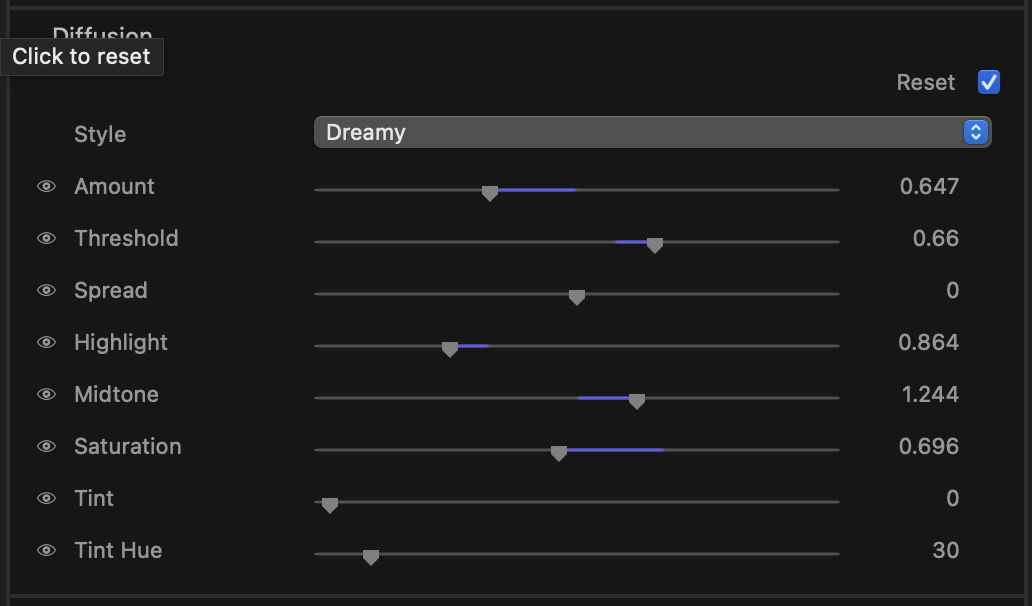
What it does
The stage finds the brighter parts of the frame, blurs them, and blends that softened light back over the original. You control how far the glow reaches, where it starts, and how the recovered light is toned and coloured. A little goes a long way — most looks live in the lower half of the Amount range.
Controls
Style
A popup that sets the overall character of the bloom. Each style is a tuned starting point, from barely-there to full romantic haze:
None, Subtle, Fine Detail, Balanced, Medium, Delicate, Compact, Dreamy, Natural, and Whisper.
Pick a style first to get in the neighbourhood, then refine with the sliders below.
Amount
Master intensity of the glow, from 0 (off) up to 2. Default 0.3. This is the dial you reach for most — it scales how much softened light is mixed back over the picture.
Threshold
Sets how bright a pixel must be before it starts to bloom, from 0.2 to 0.9. Default 0.6. Lower values let midtones glow as well as highlights for an all-over softness; higher values restrict the bloom to just the brightest speculars and skies.
Spread
Controls how far the glow reaches out from a bright area, from -1 to 1. Default 0. Move it positive for a wide, soft halo; negative for a tight, contained shimmer close to the source.
Highlight
Tones the recovered light in its brightest regions, from 0.5 to 2. Default 1. Use it to make the glow itself brighter or more restrained without changing where it appears.
Midtone
Tones the recovered light through its middle range, from 0 to 2. Default 1. Shapes how the bloom falls off into the darker parts of the picture.
Saturation
Sets the colour intensity of the glow, from 0 (a clean white bloom) to 1.5. Default 0.4. Lower it for a neutral, filmic haze; raise it to let coloured highlights bleed their hue into the soft light.
Tint
Recolours the glow toward a hue of your choosing, from 0 (no tint — the glow keeps the picture’s own colours) to 1 (fully tinted). Default 0. The tint touches only the bloom, never the underlying image, and it preserves the glow’s brightness — so you can push it hard without the image dimming or washing out.
Tint Hue
Picks the tint colour on a 0–360° hue wheel. Default 30° — a warm amber. Around 30° gives candle-light and golden-hour warmth; 200–230° cools the bloom toward a moonlit blue; try 320° for a magenta neon haze.
tip
For a classic glamour look, choose Dreamy or Whisper, then pull Threshold down so skin midtones catch a little of the glow. Keep Amount modest — somewhere around 0.5 to 0.8 — so the image softens without going milky. For period warmth, add a touch of Tint at the default amber hue.
note
Every slider has a hover-reveal reset — move the pointer over a row and click the reset control to return that single value to its default without disturbing the rest of the stage. Diffusion is a static stage — the glow you set holds across the whole clip.