The Gallery — Presets & LUTs
The Kredi Lab Presets Gallery is a panel inside Final Cut Pro that holds your presets and LUTs, previews them live on your own footage, and applies them with one click. Open it from Final Cut Pro’s extensions button in the toolbar (or Window → Extensions → Kredi Lab Presets Gallery).
The gallery always works on the active clip — the clip whose Kredi Lab inspector is currently open. Select the clip first, then browse.
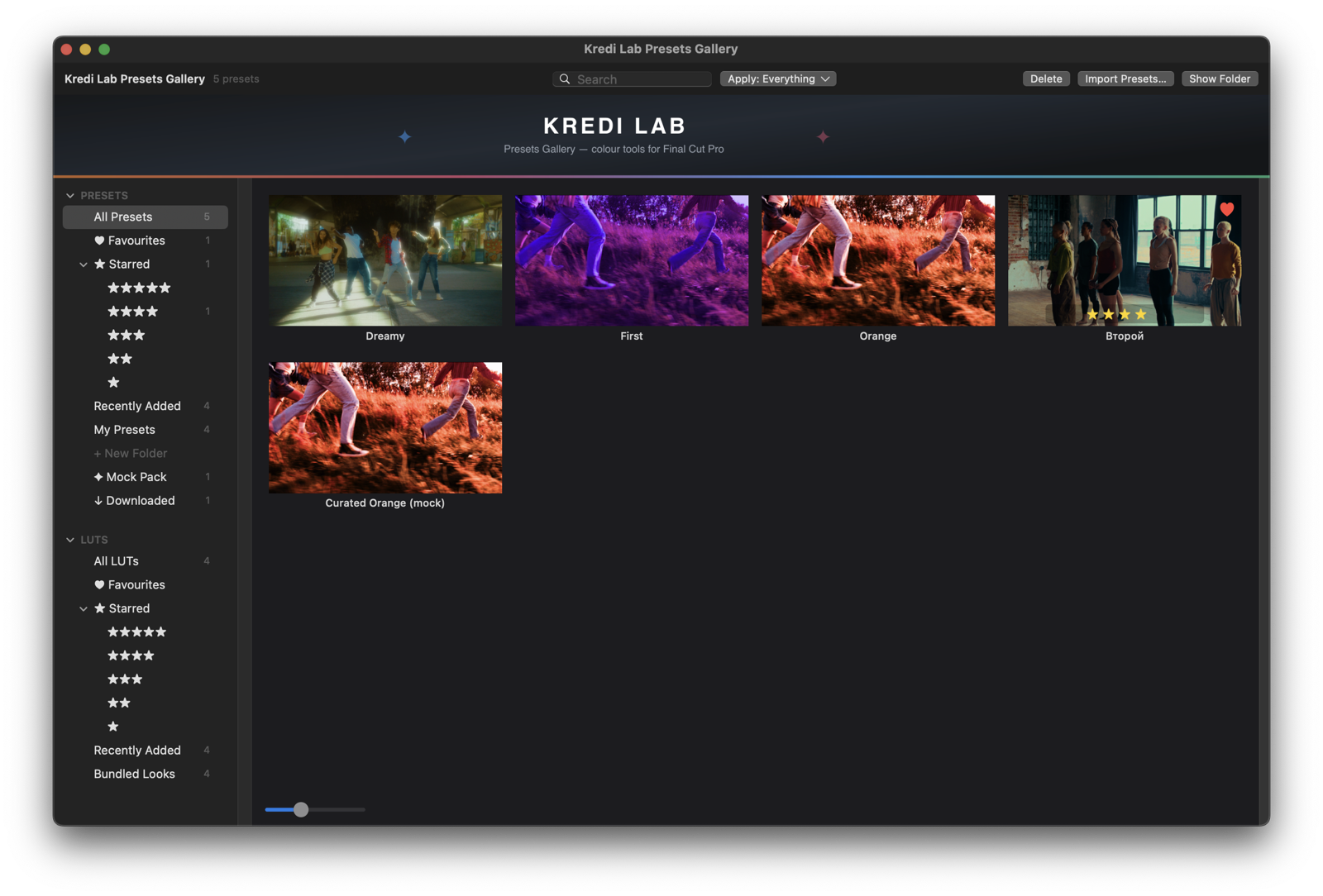
Presets
Browsing and previewing
The PRESETS section of the sidebar organises your library:
- All / Favourites / star ratings / Recent — smart views over everything in the library.
- My Presets — presets you saved, with one level of folders (each folder in the preset library becomes a group here).
- Online packs and Downloaded — curated collections from the online gallery.
Hover a card and the viewer shows that preset applied to your clip — live, full quality, without changing anything. Move off the card and your grade returns. Double-click applies the preset as a single undo step (⌘Z restores your previous grade completely).
Cards carry a heart (favourite) and a five-star rating strip — both are saved outside the preset files, so rating never modifies a preset.
Saving presets
Save your current grade from the plug-in inspector’s Presets menu (Save Preset…). The preset captures every stage you have touched, a thumbnail from the current frame, and (optionally) an embedded custom LUT. Files land in the preset library folder — see Preset files & format for where they live and what’s inside them.
Importing, deleting, organising
- Import Presets… copies
.kredipresetfiles into the library. - Files added in Finder are picked up live — organise them into subfolders and the sidebar follows.
- Delete removes the selected preset (moves the file to the Trash).
- Show in Finder opens the library folder.
Apply Filters — apply only part of a preset
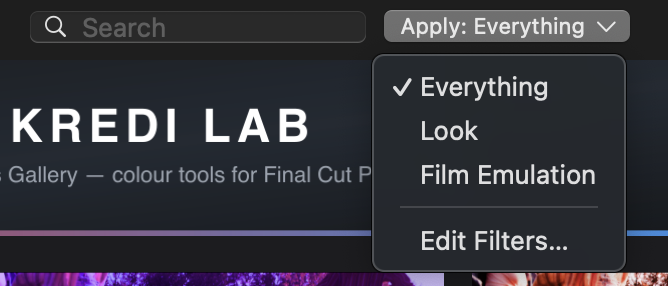
A preset saved by someone else carries their input transform and base correction — usually wrong for your footage. Apply Filters solve this: they control which stages of a preset are applied.
The Apply button in the gallery footer selects the active filter:
- Everything — the whole preset, exactly as saved.
- Look (the default) — the creative stages only. Your input transform and base correction stay yours; the preset contributes its look.
- Film Emulation — film stock, colour density and grain only. A shipped example you can edit.
- Your own filters, created in the editor below.
While a filter other than Everything is active, the footer shows an amber note so a partial apply is never a surprise. Hover previews honour the active filter too — what you preview is what you get.
How a filtered apply behaves: the stages covered by the filter are first reset to defaults and then set to the preset’s values, so you get the preset’s look for those stages exactly as the author saved it. Stages outside the filter are not touched at all.
Editing filters
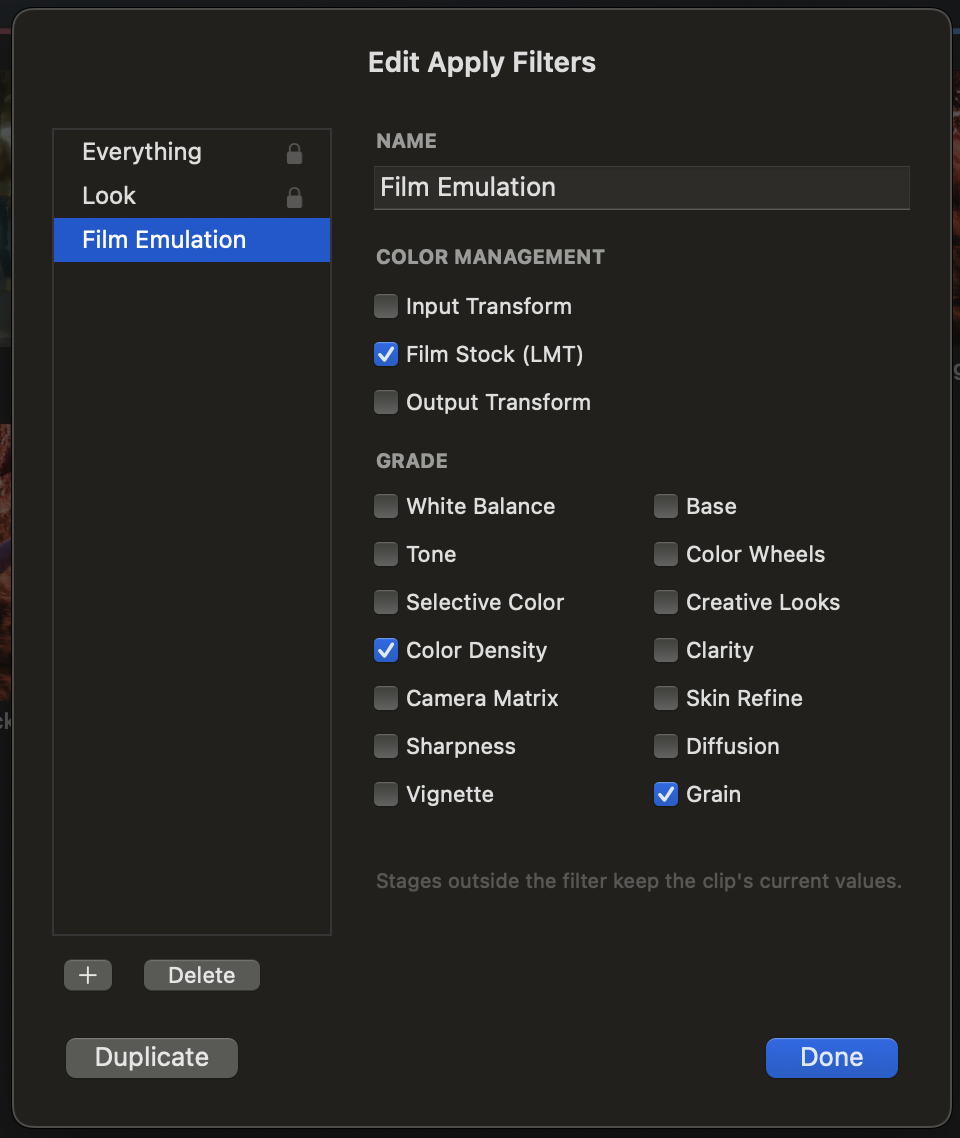
Edit Apply Filters… (in the Apply menu) opens the editor: your filters on the left, and checkboxes for every stage — the three colour management slots (Input / Look / Output) plus each grading stage — on the right. Duplicate an existing filter to start a new one. The built-in Everything and Look filters are locked (shown with a padlock); Film Emulation ships editable as a starting point.
LUTs
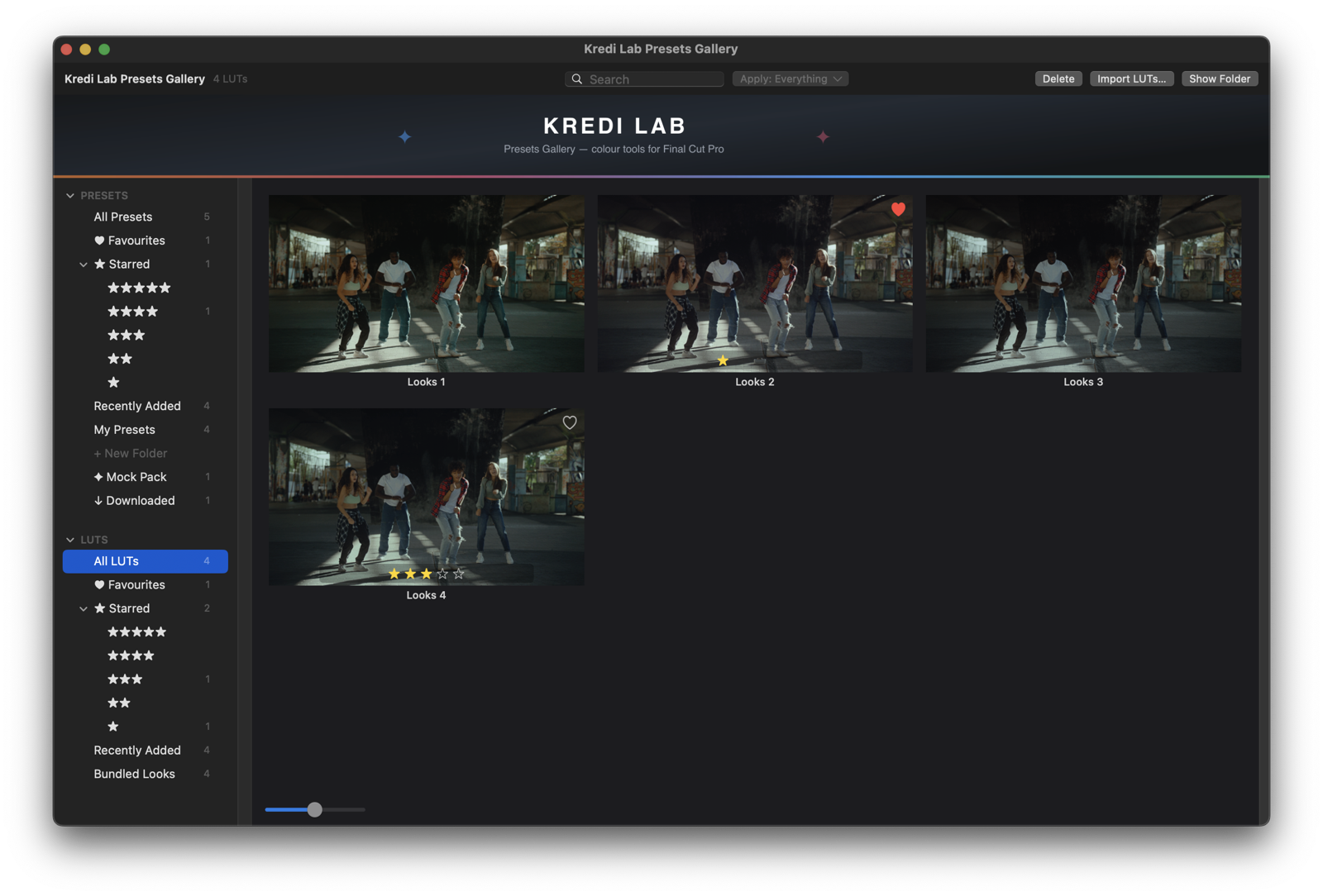
The LUTS section of the sidebar is a browser for .cube files:
- All / Favourites / ratings / Recent — smart views, same as presets.
- Your folders — the LUT library is
~/Library/Application Support/Kredi Lab/LUTs/; one level of subfolders becomes groups. - Bundled Looks — the four looks that ship with Kredi Lab (read-only).
Thumbnails on your footage
LUT thumbnails are not canned images — every card is rendered from your clip’s current frame through that LUT, so you judge each look on the material you are actually grading. The frame refreshes the first time you browse in a session.
Previewing and applying
Hovering a LUT card previews it live on the viewer on top of your current grade — the LUT loads into the Creative Looks stage while everything else you have set stays in place. Double-click loads the LUT into Creative Looks for real (one undo step, “Select LUT”).
Managing LUTs
Import LUTs…, Delete and Show in Finder work on the LUT
library just as they do for presets. Ratings and favourites are stored
in the same sidecar system — your .cube files are never modified.