Grain
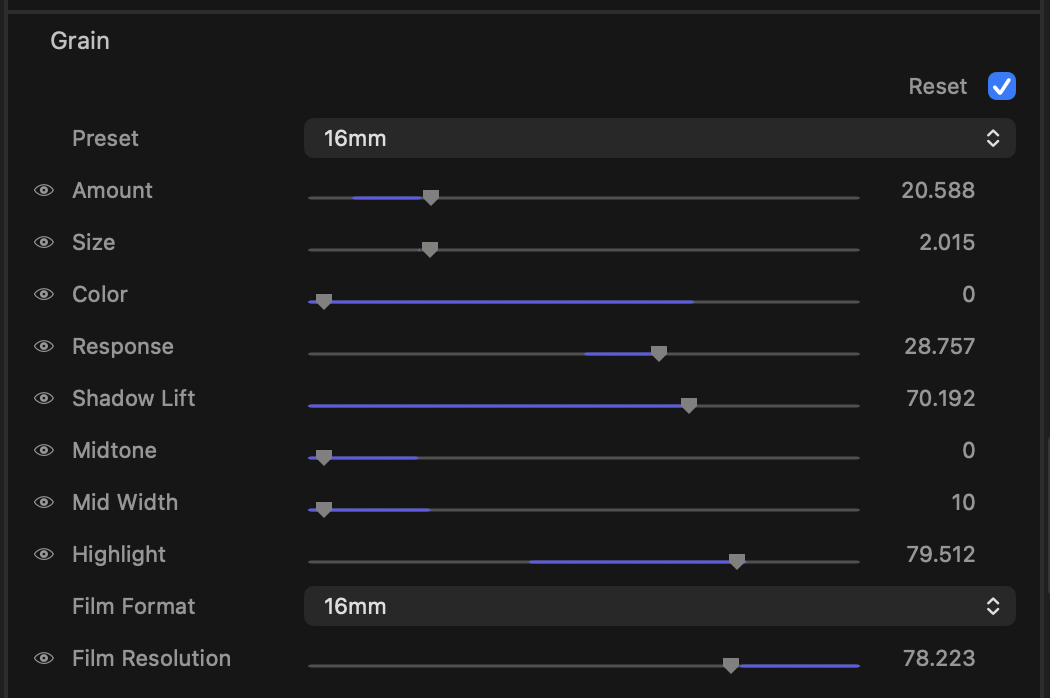
Add the organic texture of photochemical film to a digital image. The Grain stage overlays a moving grain pattern that can be tuned for coarseness, intensity and colour, then weighted across shadows, midtones and highlights so it sits naturally in the picture.
What it’s for
Pristine digital footage can feel clinical. A measured layer of grain reintroduces the life of a film stock — softening banding in gradients, adding bite to highlights and helping disparate shots feel like they share an emulsion. Used heavily, it becomes a stylistic statement; used lightly, it’s the invisible glue that makes a grade feel filmic.
tip
A little goes a long way. Start with Amount low and judge the texture at 100% zoom on a calm, midtone area of the frame — grain that looks right zoomed out is often far too strong up close.
Presets
The Preset menu at the top of the section gives you a ready-made film look in one click: 8mm, 16mm, 35mm and 65mm. Each one sets every Grain control, including the Film Format and Film Resolution, and switches Grain on.
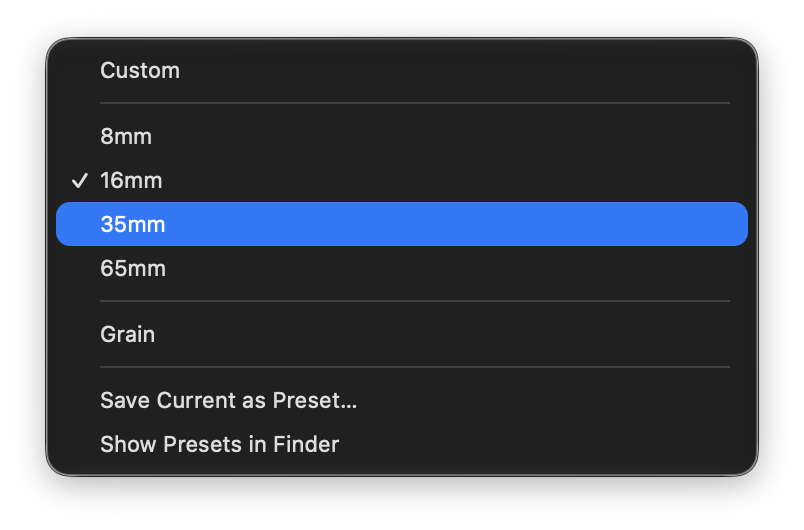
The menu always shows which preset your current settings match. As soon as you adjust any control it reads Custom, so a preset is a starting point, not a lock.
- Save Current as Preset… keeps your current Grain settings as a preset of your own. It appears in the menu below the built-in ones and works on any clip.
- Show Presets in Finder opens the folder that holds your presets. Rename or delete them there, or drop in presets someone has shared with you. They’re small files, so they’re easy to pass around. See Grain presets (.klgrain) for the file format.
Controls
- Amount (0–100, default 8) — Overall strength of the grain. The master intensity for the whole texture; set this first, then refine the tonal balance below.
- Size (1–6, default 2) — Coarseness of the grain particles. Low values give a fine, tight grain reminiscent of slow stocks; higher values produce a chunkier, faster-stock look.
- Color (0–100, default 70) — How much colour the grain carries. At 0 the grain is monochrome (luminance only); raise it to introduce the speckled chroma variation of colour film.
- Response (−100–100, default 0) — Biases how the grain reacts to image brightness. Negative values push texture toward one end of the tonal range, positive toward the other, letting you decide whether grain bites more in darker or brighter content.
- Shadow Lift (0–100, default 0) — Grain weighting in the shadows. Increase to bring texture into the darkest parts of the frame, or leave at 0 to keep blacks clean.
- Midtone (0–100, default 20) — Grain weighting across the midtones, where film grain is usually most visible. This is your main “body” of texture.
- Mid Width (10–100, default 30) — How wide a tonal band the midtone weighting covers. Narrow values concentrate grain in a tight slice of midtones; wider values spread it across more of the range.
- Highlight (0–100, default 40) — Grain weighting in the highlights. Raise for sparkle and bite in bright areas; lower to keep highlights smooth.
- Film Format (Off, 8mm, 16mm, 35mm, 65mm; default Off) — The film gauge to emulate. It sets how the image resolves detail as Film Resolution comes down: fine detail falls away while micro-contrast holds, rather than a plain blur. Smaller gauges are enlarged more on screen, so they soften faster and read coarser; 65mm stays crisp over the same range. Off leaves the image untouched.
- Film Resolution (0–100, default 100) — The resolving power of the emulated stock. At 100 the image stays sharp; lower it to soften the picture the way the chosen gauge would, letting the grain sit in a gentler, more organic image. It is available once a Film Format is picked, and it works independently of Amount, so you can soften the image with no grain applied at all.
note
Grain is resolution-independent: the same settings produce the same look in HD, 4K and 8K, and proxy playback matches the final render.
Tips
note
Hover over any row and a small reset control appears — click it to return that single control to its default without disturbing the rest of the stage.
- The quickest route to a convincing look is a preset close to what you want, then Amount to taste. Save the result if you’ll use it again.
- Balance the three tonal weights (Shadow Lift, Midtone, Highlight) like a graphic EQ for texture: most stocks carry the strongest grain in the midtones, lighter in the highlights and very little in clean shadows.
- Use Mid Width together with Response to place the grain exactly where the image needs it rather than dialling Amount up globally.
- Grain settings are static for the clip — they apply uniformly over time and are not keyframed — so set them once for the look of the shot.