The Header
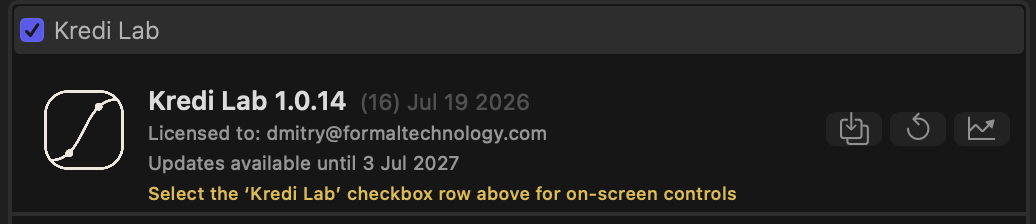
The header strip sits at the very top of the Kredi Lab inspector, above every grading stage. It is your at-a-glance status bar and command centre: it tells you which version you are running, who the plug-in is licensed to, whether updates are available, and gives you one-click access to presets, a full reset, and the animation editor.
What it shows
The header packs three lines of status on the left and three icon buttons on the right.
Product line
The top line shows the product name and version (for example Kredi Lab 1.0.14) followed by a dimmer build number and release date. Quote this line if you ever need to report an issue — it identifies exactly which build you are on.
Licensed to
Below the product line, Licensed to: your@email confirms the account the plug-in is registered to.
Hover this line and it reveals a Manage action. Click it to open the licence window in Kredi Lab FxPlug, where you can deactivate this Mac, free up a seat, or review your licence details.
note
Licence actions always open in Kredi Lab FxPlug; the plug-in never asks for licence details inside Final Cut Pro.
Updates
The third line reads Updates available until <date>, the date through which your licence includes free updates.
- Hover the line to reveal Check for Updates. Click it to launch the updater and install the newest version.
- A small green dot appears beside this line when a newer version is ready to install.
- If your update window has lapsed, the line turns orange and reads Updates ended <date>.
Buy / Extend button
When relevant, an orange button appears to the right of the status lines:
- During the trial it shows Buy alongside a Trial — N days left note.
- After the trial it shows Buy or Restore (use Restore if you have already purchased on another Mac).
- If you own a licence but your update window has lapsed, it shows Extend so you can renew access to new versions.
Clicking the button opens Kredi Lab FxPlug to complete the purchase, restore, or renewal.
The yellow notice — “Select the ‘Kredi Lab’ checkbox row above”
Sometimes a yellow line appears at the bottom of the header:
Select the ‘Kredi Lab’ checkbox row above for on-screen controls
This means the inspector is open but the effect itself isn’t selected — and without that, everything Kredi Lab draws on the picture is inactive: the Quick Grade dot and palette, the favourites menu, and every eyedropper/picker. Final Cut Pro only routes viewer clicks to an effect while that effect is the selected one.
The fix is one click: in the Video inspector, click the Kredi Lab row itself (the row with the blue checkbox, above the header). The on-screen controls come alive and the notice disappears on its own. It also explains the most common “the plug-in isn’t working” moment — if clicks on the picture seem to do nothing, glance at the header for this line.
The icon buttons
Three buttons sit at the far right of the header.
Presets
The presets button opens a small menu:
- Save Preset… writes your entire current look — every stage and setting — to a preset file on disk, complete with a thumbnail.
- Load Preset… applies a saved preset, replacing the current grade.
Presets are a quick way to reuse a look across shots or projects, or to hand a grade off to a collaborator.
Reset All
The reset button clears all grading back to default in one click — every stage at once. Use it when you want a clean slate rather than resetting stages one at a time.
tip
To reset a single control instead of everything, hover over that control’s row and click the small reset arrow that appears — only that one value returns to its default. The header’s Reset All is the all-or-nothing version.
Animation editor
The rightmost button toggles the Keyframe Editor, where you can view and refine the animation of any keyframed control over time. Click it again to hide the editor.
Tips
tip
The Licensed to and Updates lines only reveal their actions on hover, which keeps the header clean. If you do not see Manage or Check for Updates, move your pointer over the line.
tip
Save a preset before experimenting. If a look goes sideways, you can hit Reset All and re-load your saved starting point in seconds.