Quick Grade — grading without leaving the viewer
Quick Grade puts your most-used parameters on the image itself: a small dot in the lower-left corner of the viewer is the anchor for a typed command palette and a favourites menu at your cursor. Grab a parameter from either, then drag anywhere on the picture to adjust it — no scrolling through the inspector.
Quick Grade is available whenever a Kredi Lab effect is selected. The dot is the only thing ever drawn permanently; everything else appears on demand and vanishes when you’re done. Esc always releases whatever Quick Grade is holding.
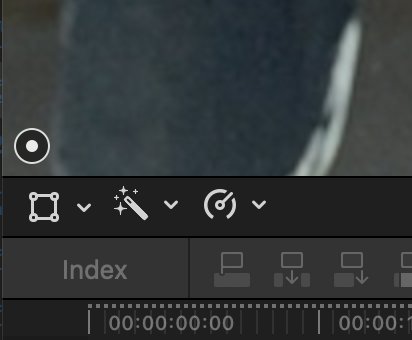
The command palette — type it
Click the dot and a small search panel opens next to it. Start typing any parameter name — suggestions appear as you type, with each parameter’s stage and current value:
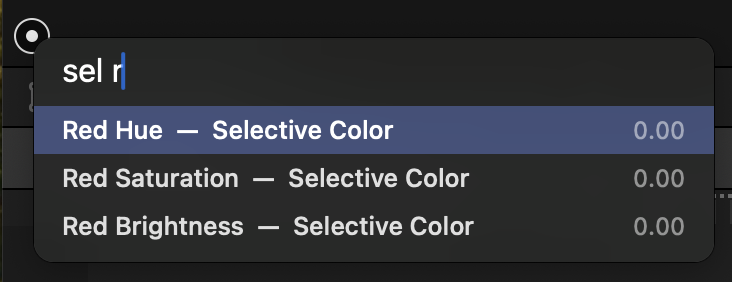
- Matching is forgiving:
sel red satfinds Red Saturation — Selective Color; small typos are tolerated. - ↑ / ↓ (or Tab) move through suggestions; Enter grabs the selected parameter for on-image adjustment (see Adjusting, below).
- Esc or clicking anywhere else closes the palette.
The palette also understands values and commands directly:
| You type | What happens |
|---|---|
exposure | Grabs Exposure — drag on the image to adjust. |
exposure 0.5 | Sets Exposure to 0.5 (one undo step). |
exposure +0.2 | Nudges Exposure by +0.2 relative to its current value. |
reset grain | Resets Grain Amount to its default. |
grain off | Toggles the parameter’s bypass. |
reset all | Resets the entire grade (one undo step). |
Every parameter in the plug-in is reachable this way — nothing needs to be configured first.
The favourites menu — right where you click
⌥-click anywhere on the image (or ⌥-click the dot) and a menu opens under the cursor with your favourite parameters and their live values.
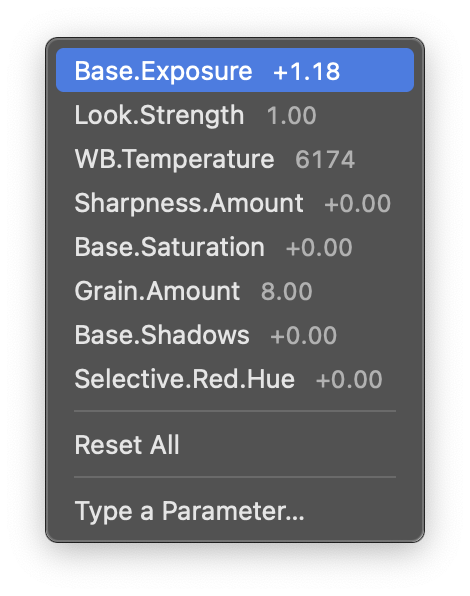
- Click an entry to grab that parameter — then drag on the image to adjust it.
- Hold ⇧ while the menu is open and each entry becomes Reset … — click to return that parameter to its default.
- Hold ⌘ and entries with a bypass become Bypass … / Enable ….
- The menu also offers Reset All and Type a Parameter…, which opens the command palette.
- Click anywhere else — or press Esc — to close without choosing.
Choosing what’s in the menu
The favourite slots are yours to assign: right-click any slider in the inspector and choose Assign to Quick Grade ▸ 1–8. The menu shows each slot’s current occupant; assigning a parameter that already lives in another slot moves it. Remove from Quick Grade clears a slot.
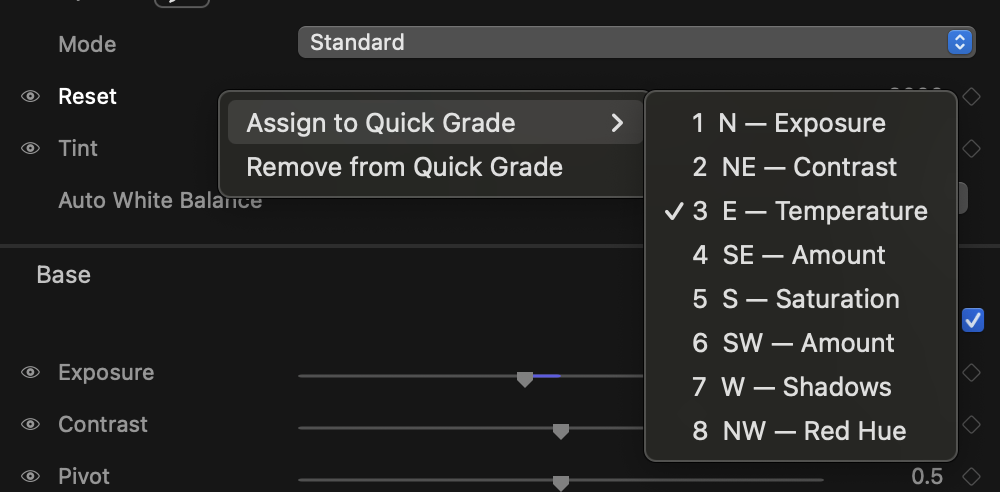
Out of the box the favourites are: Exposure, Contrast, Temperature, Tint, Saturation, Grain Amount, Shadows, Highlights. Assignments are per-user and apply across all projects.
Adjusting — drag on the image
Grabbing a parameter (palette Enter or a menu click) flashes a small readout with its name and current value. Now drag horizontally anywhere on the picture:
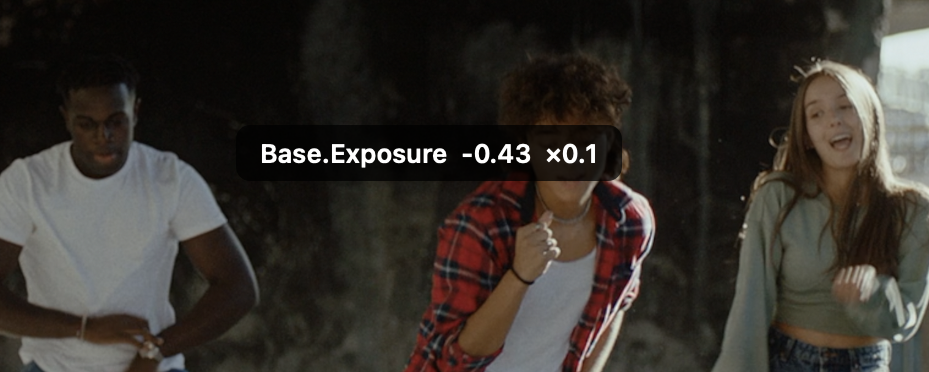
- Dragging about a third of the viewer’s width sweeps the parameter’s full range.
- Hold ⇧ while dragging for fine control (×0.1); hold ⌥ for coarse (×5). The readout shows the active gear.
- Each press–drag–release is one undo step, named for the parameter (“Adjust Exposure”) — exactly like dragging its inspector slider.
- The grab stays live for a few seconds after you release, so you can drag again to refine. It expires on its own, or press Esc to drop it immediately.
Adjustments made this way are ordinary parameter edits: they show in the inspector, they keyframe under the usual rules, sync buses see them, and presets capture them.