Selective Color
Selective Color lets you reach into one band of hues at a time and reshape it — warm a sky, calm a loud red, lift the brightness of foliage — without disturbing the rest of the frame. It works on eight colour targets, and you tune each one independently.
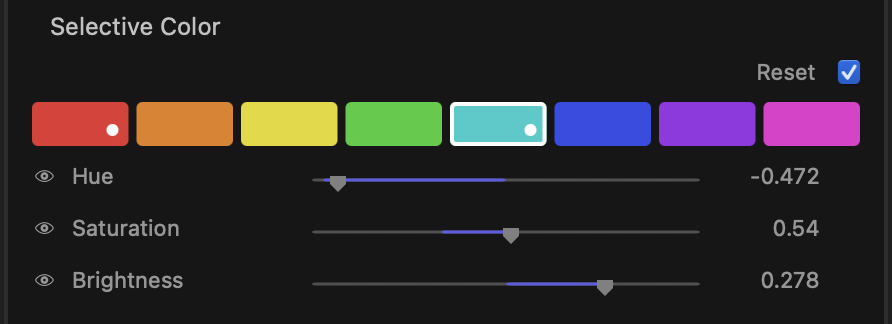
How it works
At the top of the stage is a swatch bar with eight colour targets:
Red · Orange · Yellow · Green · Cyan · Blue · Violet · Magenta
Click a swatch to select it. The three sliders below then control that colour only. Switch swatches at any time to move on to another hue — your adjustments to each target are kept separately, so you can build up several at once. A small marker on a swatch tells you that target already has adjustments, which makes it easy to see at a glance where you have been working.
Controls
For the selected colour target:
Hue
Shifts the target band toward neighbouring colours — nudge an orange toward red or toward yellow, for example. Centre (0) leaves the hue untouched.
Saturation
Increases or decreases the intensity of the selected colour. Pull it down to mute a distracting hue, or push it up to make a colour sing. Centre (0) is no change; it can go well beyond a full boost or all the way to grey.
Brightness
Lightens or darkens the selected colour without affecting other hues — useful for separating similarly-lit elements or recovering a colour that reads too dark. Centre (0) is no change.
tip
Make one change at a time. Select a swatch, adjust, then move to the next target. Because each colour is stored on its own, you can return to any swatch later and refine it without starting over.
tip
If a colour looks like it spills into neighbouring areas, a smaller adjustment usually reads more naturally than a large one — Selective Color is most convincing used with restraint.
Resetting
Hover over any slider’s label to reveal its reset control, then click it to return that single slider to its centre default — without touching the other sliders or your other colour targets.
To clear the whole stage, reset Selective Color from the section header; this returns all eight colour targets to neutral in one step.
note
Selective Color adjustments are fixed for the clip — these controls are not keyframed, so they hold the same setting across the whole clip rather than animating over time.