Skin Refine
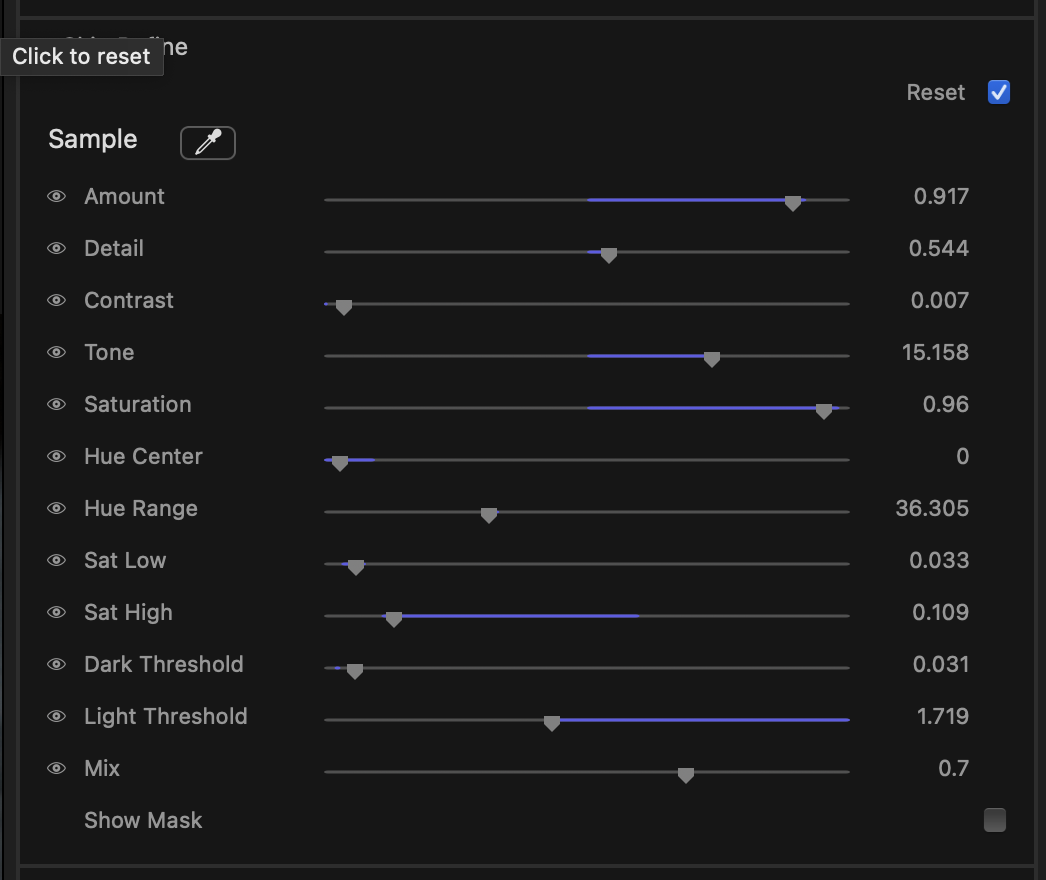
Skin Refine isolates the skin tones in your shot and lets you clean them up — softening blemishes and texture while protecting the parts of the picture you don’t want touched. Because it works only inside a tone range you define, you can smooth a face without turning the eyes, hair, or background to mush.
What it’s for
Faces draw the eye, and a great grade can be undone by patchy or noisy skin. Use Skin Refine to even out skin, take the edge off harsh texture, and keep complexions looking natural under your look. The stage targets a colour range (the skin hue) and a brightness range, so the refinement stays on skin and leaves everything else alone.
tip
Start by setting the target with the two-click eyedropper, turn on Show Mask to confirm only skin is selected, then dial in the amount of refinement.
The skin eyedropper — two clicks
The stage header has an eyedropper, and it samples skin in two clicks: first click on skin in the light, then on skin in shadow — the magnifier caption walks you through the steps. From the pair Kredi Lab derives the whole mask window at once: the hue centre and range, the saturation window, and the brightness thresholds.
 One pick session covers the full range of skin in the shot — lit side to shadow side — and works across every complexion. All the derived sliders remain hand-tweakable afterwards; re-pick whenever you move to a shot with different skin or light.
Show Mask
The Show Mask checkbox replaces the picture with a black-and-white preview of exactly what the stage is affecting: white is fully refined, black is untouched. Use it as a tuning aid — widen or narrow the hue and threshold controls until the mask covers skin cleanly and excludes hair, lips, and backgrounds. Turn it off to see the result on the real image.
Controls
Adjust the mask first (where the effect lands), then the refinement (how strong it is).
Targeting the skin
- Hue Center (0–360°, default 35) — the colour the mask is built around. The eyedropper sets this for you; nudge it by hand to shift onto warmer or cooler complexions.
- Hue Range (0–120, default 40) — how wide a band of colours around the centre counts as skin. Widen it to catch varied complexions across a face; narrow it to keep the mask tight and avoid spilling onto nearby warm tones.
- Sat Low / Sat High (0–1) — the saturation window the mask accepts. Skin sits in a characteristic saturation band; the eyedropper sets this window from your samples so both delicate highlights and richer, more saturated skin stay inside the mask while greys and vivid colours stay out.
- Dark Threshold (0–1, default 0.02) — protects the darkest areas. Raise it to keep shadows, nostrils, and dark hair out of the mask.
- Light Threshold (0–4, default 4.0) — protects the brightest areas. Lower it to drop hot highlights and specular shine out of the refined region.
Refining the skin
- Amount (0–1, default 0.5) — overall strength of the smoothing. Higher values clean up more texture and blemishes; very high values can start to look waxy, so ease off until it reads natural.
- Detail (0–1, default 0.5) — how much fine skin texture (pores, fine lines) is preserved while larger imperfections are smoothed. Raise it to keep skin looking real; lower it for a softer, more polished finish.
- Contrast (0–1, default 0.0) — restores local contrast to the refined skin so it doesn’t go flat after smoothing. A touch here keeps faces looking dimensional.
- Tone (−30–30, default 0) — corrects the colour of the skin inside the mask. Nudge negative or positive to fix ruddy (too red) or sallow (too yellow) complexions without touching the rest of the frame. Works even with Amount at zero, so you can colour-correct skin without smoothing it.
- Saturation (−1–1, default 0) — saturation trim for the masked skin only. Pull down to calm blotchy colour; push up to bring life back to washed-out skin.
- Mix (0–1, default 0.7) — blends the refined result back over the original. This is your master “how much” control — pull it down to make the whole effect more subtle, push it up for the full treatment.
Resets
Hover over any row to reveal its reset control, which returns that single slider to its default without disturbing the rest of the stage. Skin Refine is a static stage — its settings hold across the whole clip. The stage also has a bypass toggle in its header for quick before/after checks.
note
Because the two-click pick samples skin in the light and in shadow, the mask is built to cover the subject through changing light in the shot — pick the brightest and darkest skin you expect to see.