ACES Color Management
ACES Color Management is the first stage in Kredi Lab’s pipeline. It interprets your camera footage into a wide, scene-referred working space, lets you apply an optional film-stock look, and converts the result to the format your timeline delivers in. Get this stage right and everything downstream — exposure, balance, creative grade — behaves predictably across cameras.
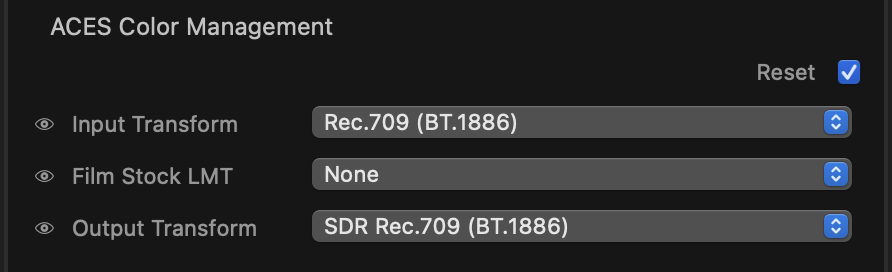
For the full picture of how footage flows from camera to display, see the pipeline.
What this stage does
Different cameras record colour and brightness in their own log or display encodings. This stage normalises everything to one common working space, applies an optional film emulation, and then maps to your delivery target. It has three popups plus a section on/off toggle.
Controls
Input Transform
Tells Kredi Lab how to read the incoming footage. Pick the entry that matches how the clip was shot so the image is interpreted correctly. Options are grouped by source:
- Default — None (no input interpretation)
- Display — Rec.709 γ 1.96 (QuickTime), Rec.709 BT.1886 (γ 2.4), Rec.709 γ 2.2, sRGB (piecewise), Rec.709 (BT.1886), sRGB, Gamma 2.2 Rec.709, Rec.2100 PQ (HDR), P3 D65, Display P3, ST2084 P3 D65 (HDR)
- Apple — Apple Log
- ARRI — LogC v3 (Alexa), LogC v4 (ALEXA 35)
- Blackmagic — BMDFilm Gen5 / Wide Gamut
- Canon — EOS and the full range of EOS C100 / C300 Mark II log variants, plus Canon Log 2 / Cinema Gamut and Canon Log 3 / Cinema Gamut
- DJI — D-Log / D-Gamut
- Fujifilm — F-Log / BT.2020, F-Log2 / BT.2020
- Leica — L-Log / BT.2020
- Nikon — N-Log / BT.2020
- Panasonic — V-Log / V-Gamut
- RED — Log3G10 / RED Wide Gamut
- Sony — SLog 10i, SLog2 Daylight 10i, SLog2 Tungsten 10i, SLog3, S-Log3 / S-Gamut3.Cine
tip
If your footage already looks correct on the timeline (standard Rec.709 / sRGB), choose a matching Display entry or leave it on None. Log footage almost always needs the camera-specific entry to look right.
Film Stock LMT
An optional film-emulation look applied in the working space, before the output conversion. Leave it on None for a clean, neutral result, or choose a stock to give the image a photochemical character:
- None
- Kodak 2383, Kodak 2393, Kodak 2302 B&W
- Fuji 3510, Fuji 3513, Fuji 3519, Fuji 3521
- Agfa CP30
Output Transform
Converts the graded image to your delivery format. Match this to your project’s output:
- SDR Rec.709 (BT.1886)
- SDR sRGB
- HDR Rec.2020 PQ (1000 nits)
- SDR P3 D65
note
For a standard HD/SDR deliverable use SDR Rec.709 (BT.1886). Only choose an HDR output when your project and display are set up for HDR.
Always on
Colour management has no on/off toggle — every other tool in the plugin depends on it, so it always runs. The Film Stock row keeps its own eye toggle for auditioning the look with and without the stock. For footage that is already display-ready, set the Input Transform to Rec.709 (BT.1886) and the round trip through the pipeline is visually transparent.
Tips
- Set the Input Transform first, before grading. Changing how the footage is read shifts the entire image, so lock it in before you balance exposure and colour.
- The Film Stock LMT is a creative choice, not a correction — audition a couple of stocks late in the grade to find the mood you want.
- Each popup has a hover-reveal reset on its row to return it to its default. The three transform popups are fixed selections and do not animate over time.