Sync Buses
Sync buses keep the same part of a grade identical across many clips, live. Change the look on one clip and every clip sharing that bus updates instantly — ideal for matching interviews, multicam angles, or a whole scene.

The idea in one minute
- There are 8 buses, numbered 1–8 and colour-coded.
- A clip belongs to one bus at a time.
- A bus owns a stage set — the list of grading stages it keeps in sync (e.g. Bus 1 = Tone + Color Wheels). This set is shared by every clip on the bus.
- Put a clip on a bus and it auto-adopts that bus’s stage set and look — no per-stage setup on the 2nd, 3rd … 40th clip.
Anything not on the bus stays local to the clip, exactly as before.
The Sync panel
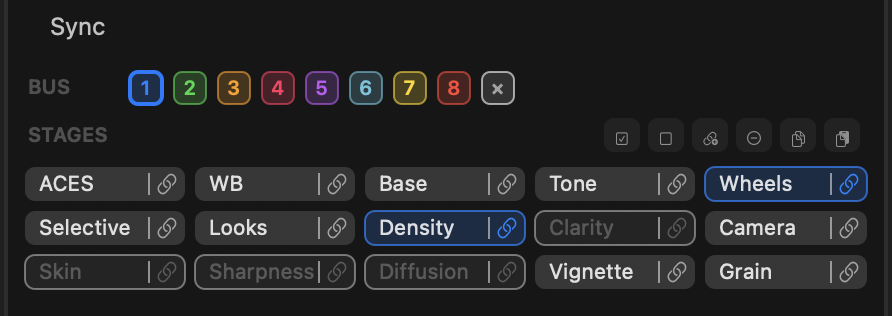
The Sync section (top of the inspector) has two rows.
BUS — the eight numbered squares plus ×. Click a number to put this clip on that bus; click × to take it off (its current look is kept). The lit square is the clip’s current bus.
STAGES — a pill for every grading stage. Each pill does two things:
- Click the name → turn that stage on/off for this clip (a quick bypass without scrolling to the stage). If the stage is on the bus, the on/off travels to every clip on the bus.
- Click the link icon → add / remove that stage from the bus’s stage set. Adding it also turns it on. Because the stage set is shared, this changes what the bus covers for all member clips.
A pill tinted in the bus colour is part of the bus; a plain pill is local.
The small toolbar (right of STAGES): turn all stages on / off for this clip, Copy this clip’s grade, Paste settings, and clear the bus’s stage set.
Typical workflows
Match a set of clips to a hero grade
- Grade your hero clip.
- In Sync, put it on Bus 1.
- Link the stages you want shared (e.g. Tone, Color Wheels).
- On each other clip, just click Bus 1 — it adopts those stages and the shared look automatically. One click per clip.
From then on, tweak Tone or Wheels on any Bus 1 clip and they all follow.
Add or drop a synced stage later
On any Bus 1 clip, click a stage’s link to add it to (or remove it from) the bus. Every clip on Bus 1 updates.
Take a clip off the bus
Click ×. The clip keeps its current look but stops syncing.
Re-use a bus later — or start it fresh
A bus keeps its stage set and look for the whole Final Cut Pro session, even when no clip is currently using it. Remove every clip from Bus 1, put a new clip on it an hour later, and the new clip adopts the bus’s previous setup — handy when you’re re-cutting a scene and want the established look back with one click.
If you want a bus to start clean instead, use the clear bus button in the STAGES toolbar (it empties the bus’s stage set), or restart Final Cut Pro — buses reset when the app quits.
Copy / Paste
Copy grabs this clip’s whole grade (values + on/off, plus Base / White Balance animation). Paste applies the chosen stages onto the current clip — pick Values, On/off, or Both, tick the stages, and optionally include animation. If a pasted stage is on the clip’s bus, the change propagates to the bus like any other edit.
note
- Buses are per project — clips only sync within the same Final Cut Pro project.
- A bus remembers its settings for the session even with no clips on it; clear its stage set (or restart the app) to start it fresh.
- Duplicating a clip (FCP copy/paste) carries its bus membership, so the copy joins the same bus automatically.
- Only Base and White Balance carry keyframe animation through Copy / Paste.