Tone
The Tone stage shapes contrast and brightness across the image. It has two halves: a set of master zone controls that push the four tonal bands of the picture up or down, and a curve editor that lets you reshape Luma, Red, Green and Blue with freeform points. Use it to set overall contrast, lift or crush specific ranges, and dial colour balance through the channel curves.
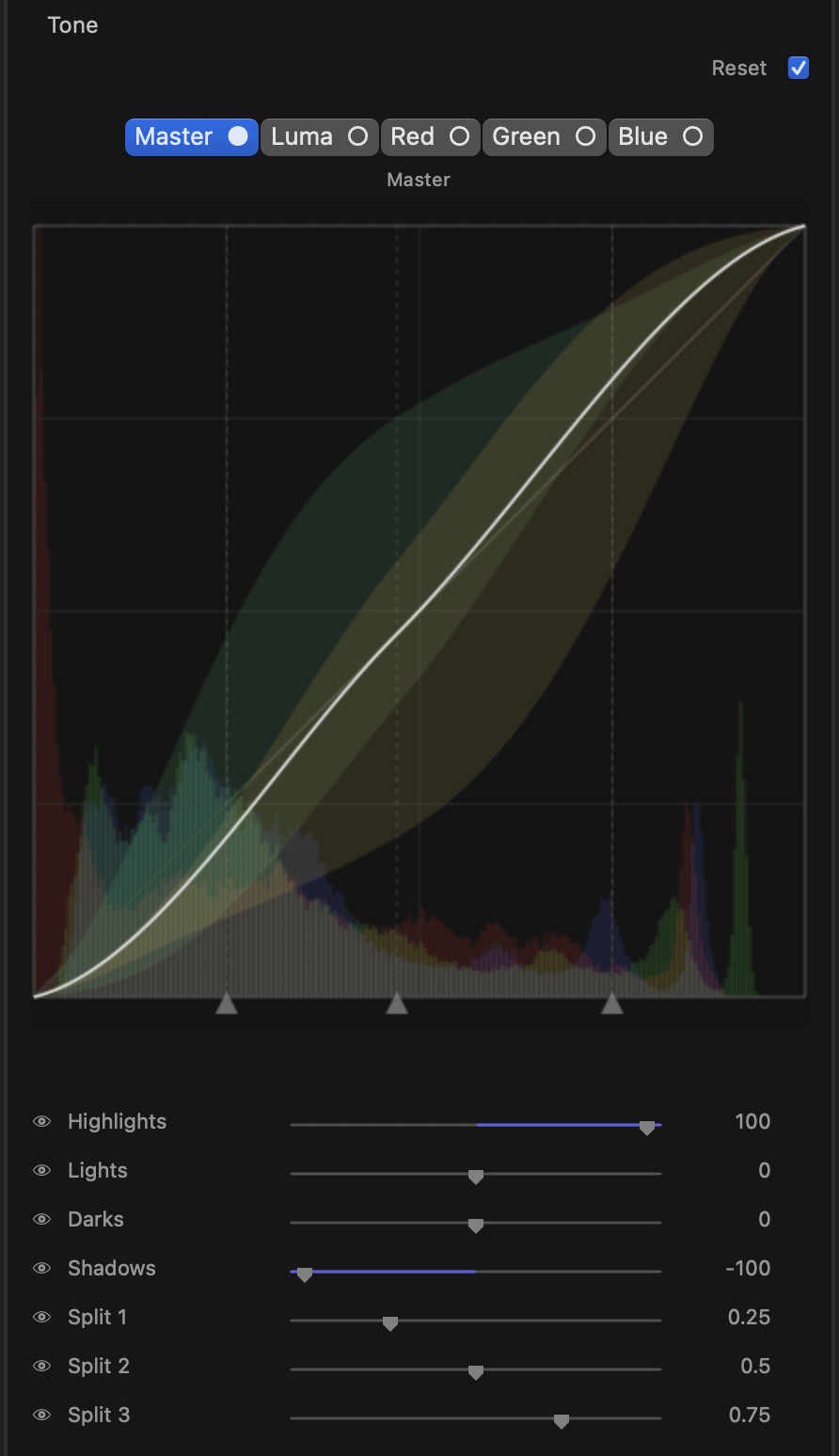
Master zone controls
These sliders divide the image into four tonal bands and let you raise or lower each one. All four run from -100 to +100 and start at 0 (no change). Push positive to brighten a band, negative to darken it.
- Highlights — the brightest part of the image (speculars, bright sky).
- Lights — the upper midtones, just below the highlights.
- Darks — the lower midtones, just above the shadows.
- Shadows — the darkest part of the image (deep blacks).
Because the four bands overlap smoothly, you can build classic moves quickly: lift Shadows and pull Highlights for a flatter, filmic look, or the reverse for punchier contrast.
Split points
Three split sliders set where one band ends and the next begins, so you can decide how much of the picture each zone covers. Each runs from 0 to 1:
- Split 1 — boundary between Shadows and Darks (default 0.25).
- Split 2 — boundary between Darks and Lights (default 0.50).
- Split 3 — boundary between Lights and Highlights (default 0.75).
Move a split toward the blacks or whites to make the neighbouring zone control a wider or narrower slice of the image. For example, lowering Split 1 lets the Shadows control bite only into the very darkest pixels.
tip
Set the split points first to decide where each zone lives, then use the four zone sliders to decide how much to move them. This keeps your contrast adjustments landing exactly on the tones you mean.
Curve editor
Below the master controls is a curve editor with a channel switcher across the top: Master, Luma, Red, Green and Blue.
- Master mirrors the four zone sliders and split points as a single read-only contrast curve — it is a visual reference for what the master controls are doing, not an editable curve.
- Luma reshapes overall brightness without touching colour balance.
- Red, Green and Blue reshape each colour channel independently, which is how you push colour into specific tonal ranges (for example warming highlights by lifting Red at the top while dropping Blue).
While you edit one channel, the other channels’ curves appear as dimmed overlay lines in their own colours — so you can shape Red against what you already did on Green and Blue without switching back and forth. Untouched (straight) curves stay hidden to keep the editor clean.
Click a point on the curve and drag to bend it; add points by clicking on the line and remove a point by dragging it off. The grid behind the curve shows the tonal range from blacks (left) to whites (right).
Eyedropper and presets
When a freeform channel (Luma, Red, Green or Blue) is active, three tools appear under the curve:
- Eyedropper — pick a curve point straight from the image. Click it, then click a pixel in the picture, and a control point is added at that tone so you can lift or lower exactly that part of the image.
- S-Curve — drops in a ready-made contrast S-curve you can fine-tune.
- With Ranges — lays down evenly spaced control points across the curve, giving you handles in the shadows, mids and highlights to grab right away.
The eyedropper and presets are only available on the colour and luma channels; they are hidden on Master since that curve is driven by the zone sliders.
Resetting
- Every master slider has a per-row reset — hover over the row and the reset affordance appears; click it to send that one control back to its default.
- The channel label above the curve acts as a reset for whatever channel is active: on a freeform channel it restores the identity (straight) curve, and on Master it returns the four zones and three splits to their defaults.
- The section header Reset clears the entire Tone stage at once — all four zones, the three splits and every Luma/Red/Green/Blue curve.
note
Tone is a static stage: its settings apply to the whole clip and are not keyframed. Choose one tonal look per clip rather than animating it over time.