Vignette
The Vignette stage darkens or lightens the edges of the frame to draw the eye toward the centre of your shot. It is a classic finishing tool: a subtle dark vignette adds depth and focus, while a soft bright vignette can lift a face or product out of its background. You can also tint the vignette with any colour for a stylised, in-camera feel.
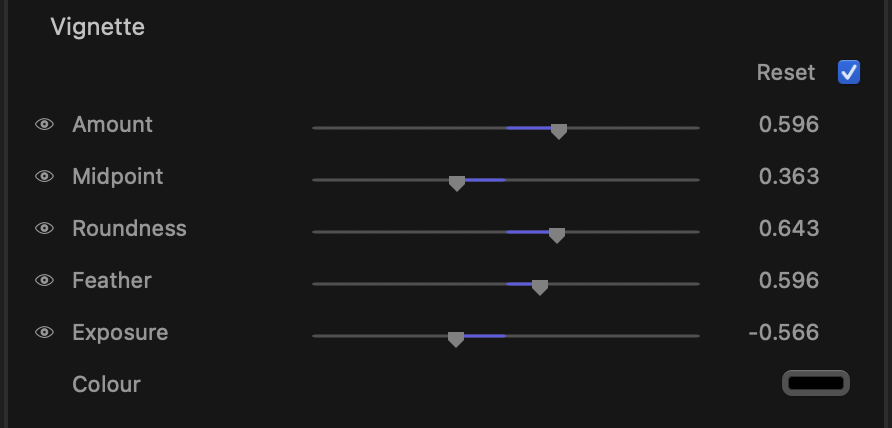
What it does
Vignette applies a smooth oval falloff that surrounds the centre of the frame. By default it darkens the corners; push it the other way and it brightens them instead. The shape, position of the transition, how round it is, and how soft its edge feels are all under your control, so you can go from a barely-there mood enhancer to a strong spotlight effect.
Controls
Amount
Sets the strength and direction of the effect. At 0 the vignette is off. Move it negative to darken the edges; move it positive to lighten them. This is the main control you reach for first. (Range -2 to 2, default 0.)
Midpoint
Moves the transition line inward or outward — in other words, how much of the frame the vignette reaches toward the centre. Lower values keep the effect tight to the corners; higher values pull it further in so more of the image is affected. (Range 0 to 1, default 0.5.)
Roundness
Controls the shape of the vignette, from a rectangular falloff that hugs the frame to a near-circular oval. Lower values follow the frame edges; higher values give a rounder, more lens-like shape. (Range 0 to 1, default 0.5.)
Feather
Sets how soft the edge of the vignette is. Low feather gives a crisp, defined boundary; high feather blends the falloff gently into the image so the transition is invisible. (Range 0 to 1, default 0.5.)
Exposure
Fine-tunes the brightness of the vignetted region independently of Amount, letting you dial in exactly how dark or bright the affected area sits. (Range -2 to 2, default 0.)
Colour
By default the vignette is neutral (black). Pick a colour here to tint the darkened or lightened region — for example a warm amber for a vintage glow or a cool blue for a moody edge. Leave it black for a standard tonal vignette.
tip
For a natural look, keep Amount modest and raise Feather so the falloff is unnoticeable — the viewer should feel the focus, not see the oval. For a stylised spotlight, lower the Feather and raise the Roundness.
note
Each slider has its own reset: hover over a row to reveal its reset control and click it to return that single value to its default, without disturbing the rest of the stage. Vignette is a static stage — the shape and strength you set hold across the whole clip.