White Balance
Use the White Balance stage to neutralise colour casts — the orange of tungsten light, the blue of open shade, the green of fluorescents — so that whites read as white and skin reads as skin. Get this right first and every grade you build on top of it behaves predictably.
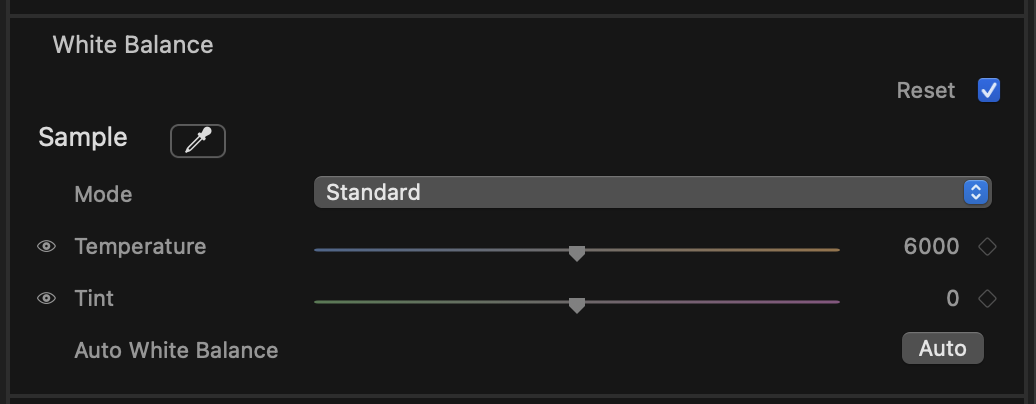
What it does
White Balance shifts the overall colour of the image along two axes so a neutral subject becomes truly neutral. Set it before reaching for creative tools — a clean starting point keeps later adjustments honest.
Controls
Mode
A popup with two settings that tell the stage what to protect while it neutralises:
- Standard — balances for the whole frame. The everyday choice for landscapes, products and general footage.
- Skin — biases the correction to keep faces looking natural, ideal for interviews and portraits where pleasing skin tone matters more than a perfectly clinical white.
Temperature
Warms or cools the image. Drag right toward warm to counteract cool, bluish light; drag left toward cool to tame an orange cast. The scale runs from roughly cool daylight to warm tungsten, resting at a neutral midpoint by default.
Tint
Corrects the green/magenta axis that Temperature can’t reach. Push toward magenta to cancel the green tinge of fluorescent and LED sources; push toward green to counter a magenta cast. Default sits at the neutral centre.
tip
Work Temperature first to get the warmth right, then nudge Tint to clear any leftover green or magenta. The two axes together can neutralise almost any source.
Auto White Balance
Press Auto and the stage analyses the current frame and sets Temperature and Tint for you. A small confidence dot next to the button tells you how much to trust the result:
- Green — a confident reading; the frame had clear neutral references.
- Amber — a usable estimate, but worth checking by eye.
- Red — low confidence (very saturated or low-contrast frames give the analysis little to work with); treat it as a rough start and refine manually.
Neutral eyedropper
Click the eyedropper, then click something in the image that should be neutral grey or white — a grey card, a white wall, a cloud. The stage balances so your pick reads neutral. This is the most precise way to set white balance when a reference is in shot.
note
The eyedropper and Auto are starting points, not the last word. After either, fine-tune Temperature and Tint by eye against the look you want.
Resetting and animation
Hover over any slider row to reveal its reset control, and click it to return that single value to its default without disturbing the rest of the stage.
Temperature and Tint can be keyframed, so you can ride white balance through a shot — for example, easing the warmth as a subject walks from daylight into tungsten interior. Set keyframes the same way you do for any animatable parameter in Final Cut Pro.